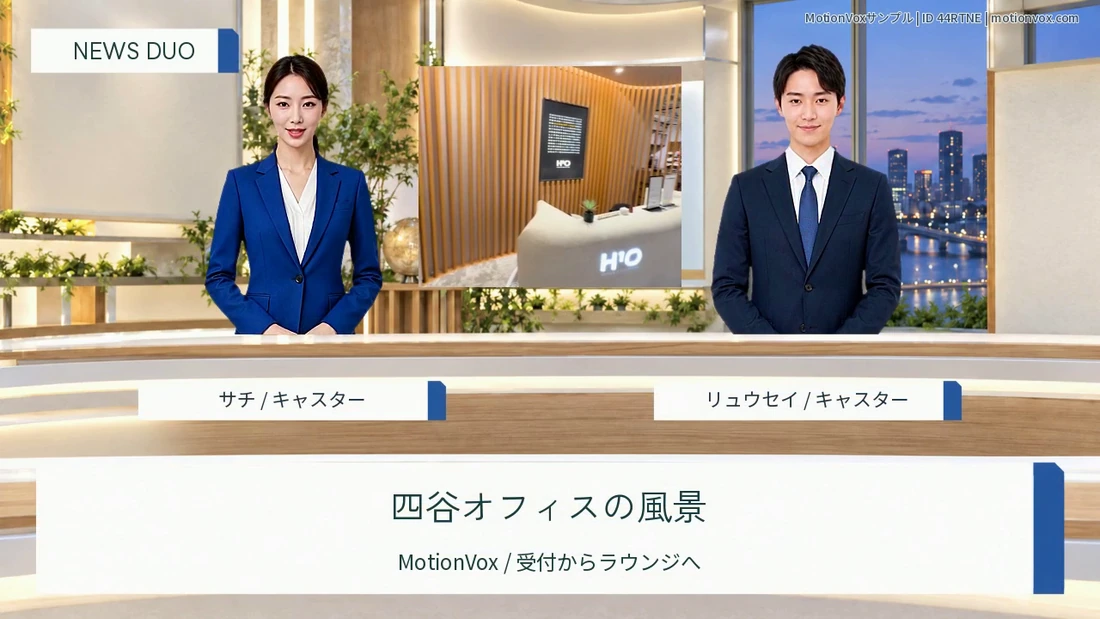
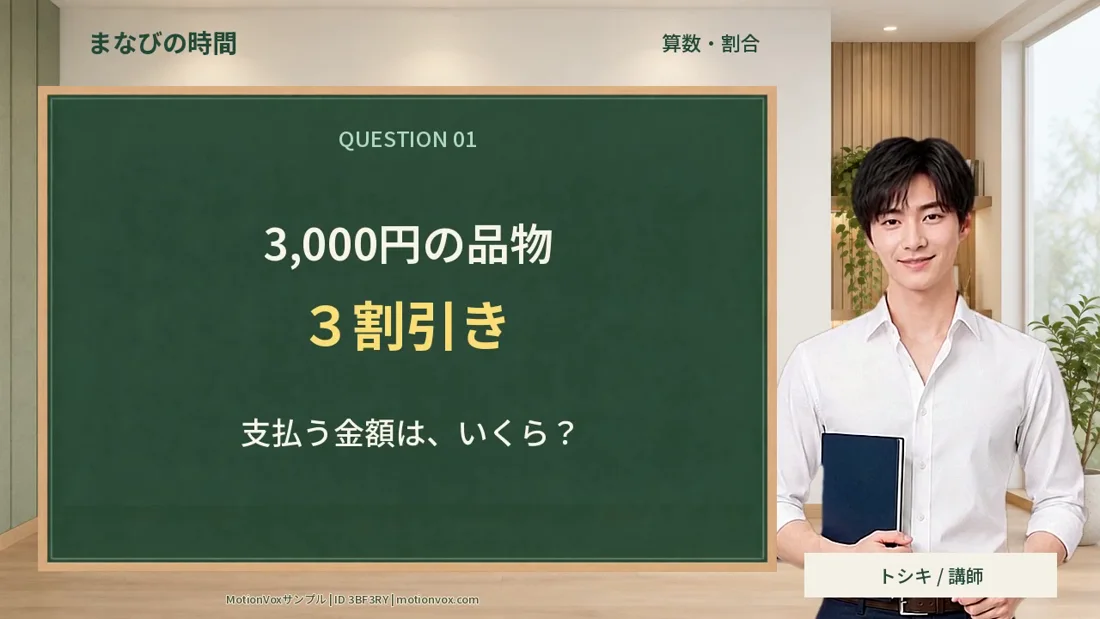
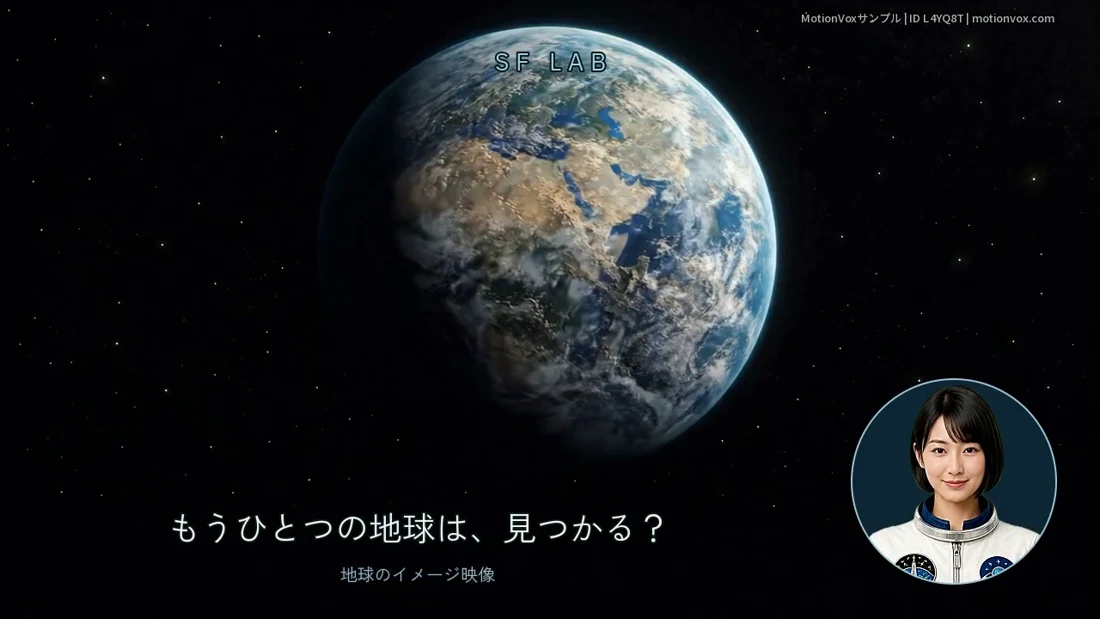
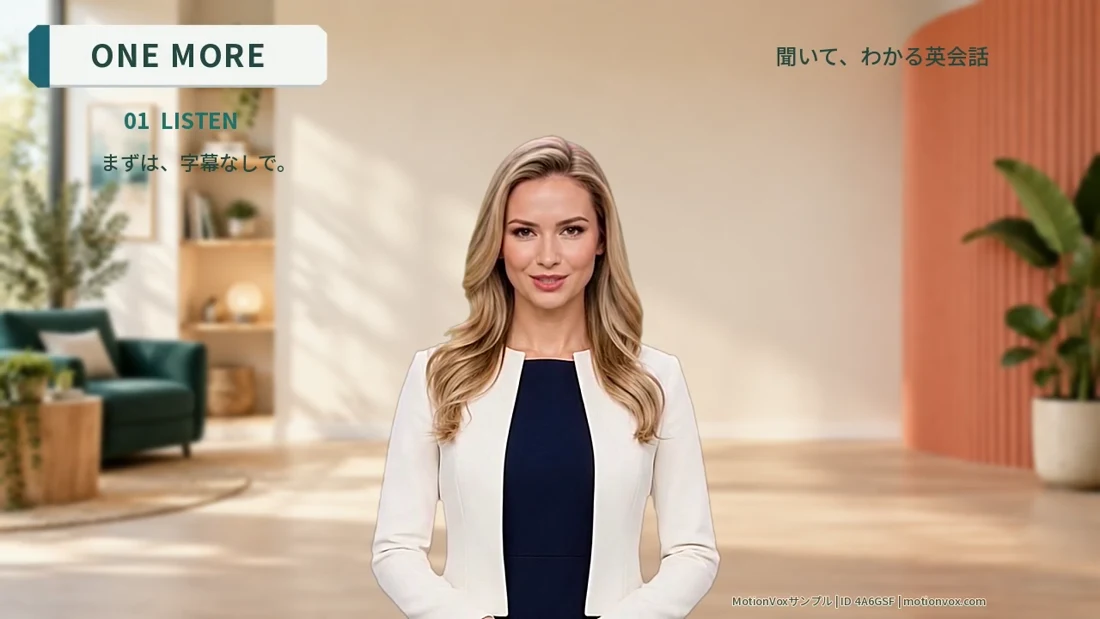
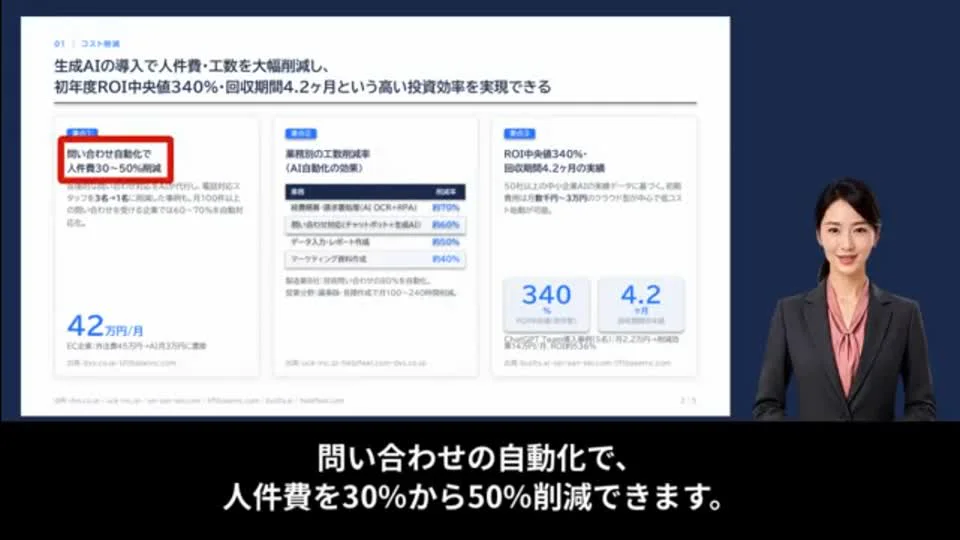
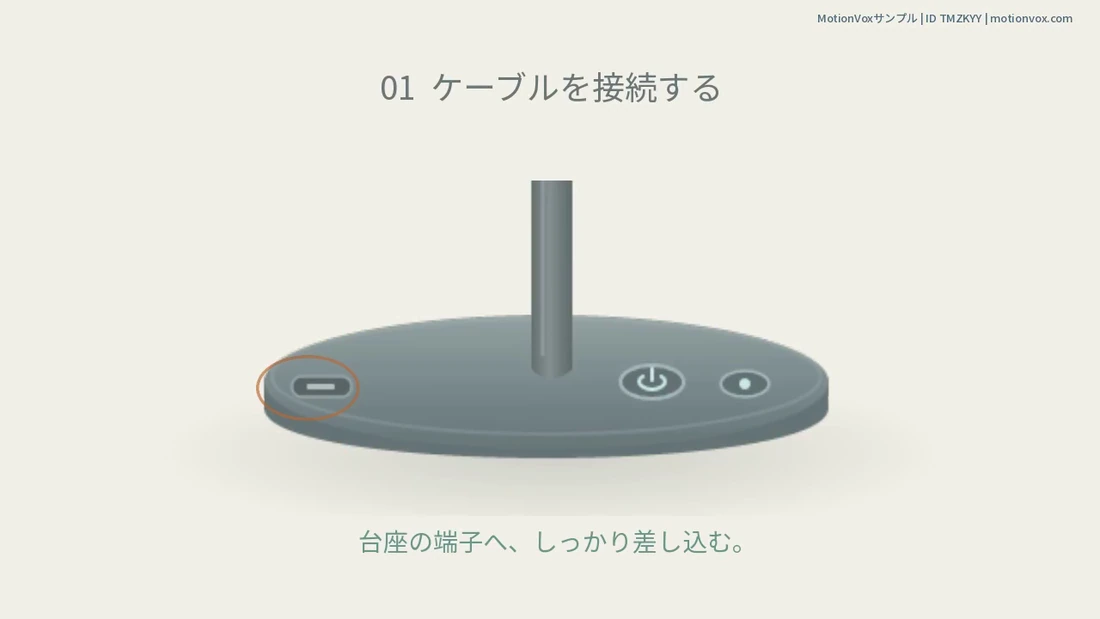
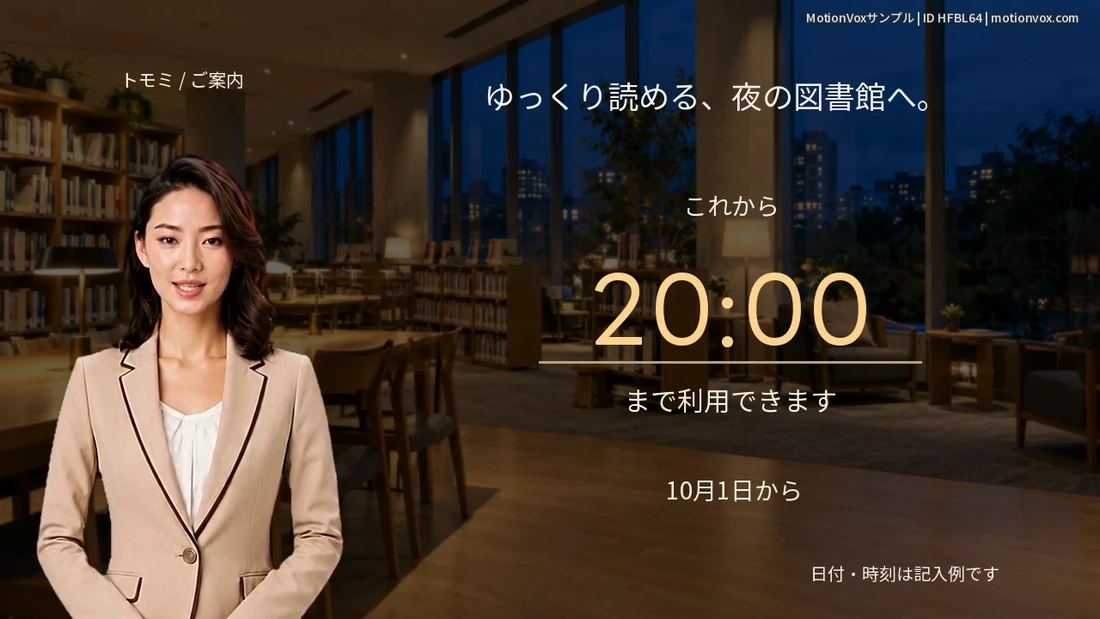
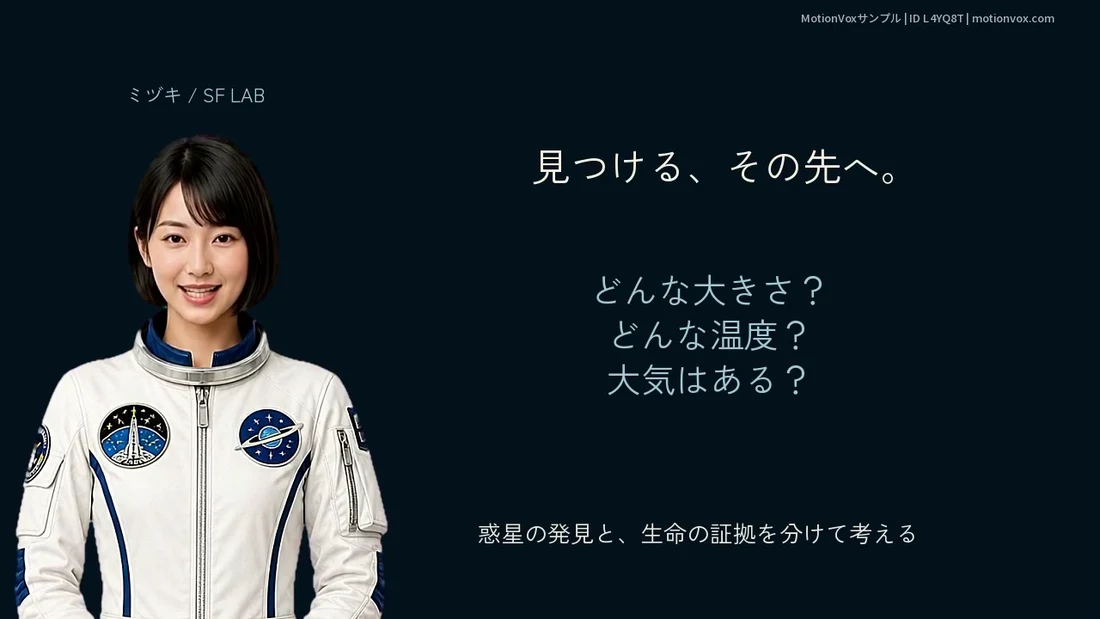
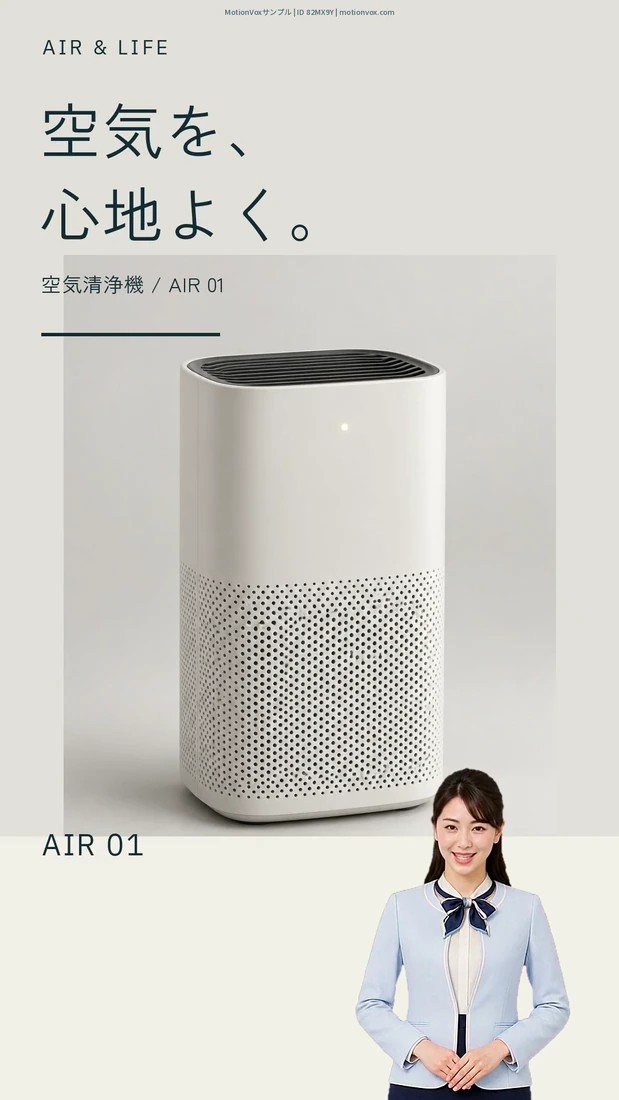
Your words, spoken by a realistic avatar. Just type a script to create a video with natural speech and expressions. No filming, on-camera appearance or voice recording needed. Choose from a rich collection of templates and edit them to make videos easily. You can also turn PowerPoint files into presentations delivered by realistic avatars.
Transfer your selfie performance. Create original avatars.
Choose a ready-made avatar, bring your own performance, or create a character from a prompt or photo. Start with the method that suits your idea.
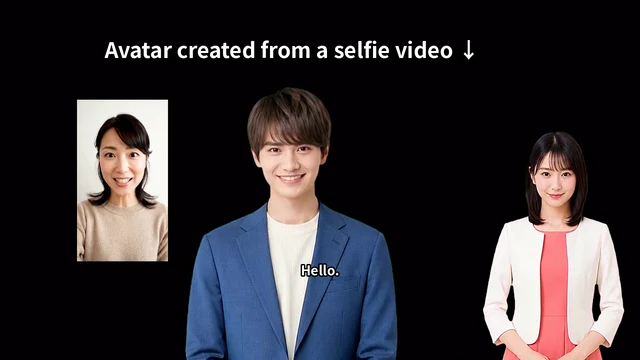
Selfie to Avatar
Transfer your selfie’s expressions and movements to an avatar
Import a video of yourself speaking to the camera. Your chosen avatar mimics your expressions and head movements, preserving the pauses, nods and delivery you performed.
2:52 From selfie video to avatar: see the transformation and how to create it. ▶ Play video
Create original avatars
From a prompt or photo to an original avatar
Generate a character from a prompt, use a photo you already have, or take one in the app. Easily create a lifelike avatar that moves naturally. Even without a photo, you can create your video’s presenter from scratch.
Avatar Maker: choose a photo, prompt or camera to create an avatar
Translation and multilingual batch generation
Create one video in Japanese. Speak multiple languages in the same voice.
Create your video in Japanese, then choose the languages you want to reach. Translate speech, on-screen text and even text inside images. Batch-generate multilingual videos with the same avatar and voice.
01 Create a Japanese video
02 Translate into multiple languages
03 Generate voices and avatar videos in a batch
The same avatar. The same voice.
From Japanese to English and Chinese, your avatar speaks multiple languages in the same voice, like a bilingual or trilingual person. A consistent appearance and voice make the presenter feel familiar across languages.
You can also choose a different avatar or voice for each language.
Translate text inside images, too
Translate scripts, headings, descriptions and text embedded in images. Use your Japanese video as the basis for multilingual sound and visuals, reducing the need to recreate images for every language.
Names, pronunciation and context matter
Translation accounts for the pronunciation of proper names. For example, the place name Shibuya remains “Shibuya” in English and keeps its Japanese pronunciation in Chinese, rather than being translated literally as “bitter valley.”
Target languages and progress for translation, voice and video generation
A MotionVox template example
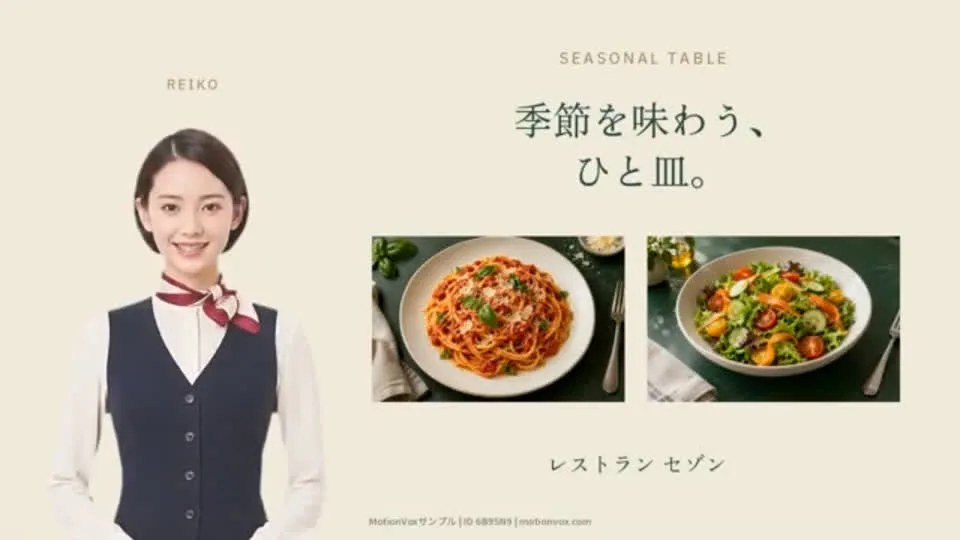
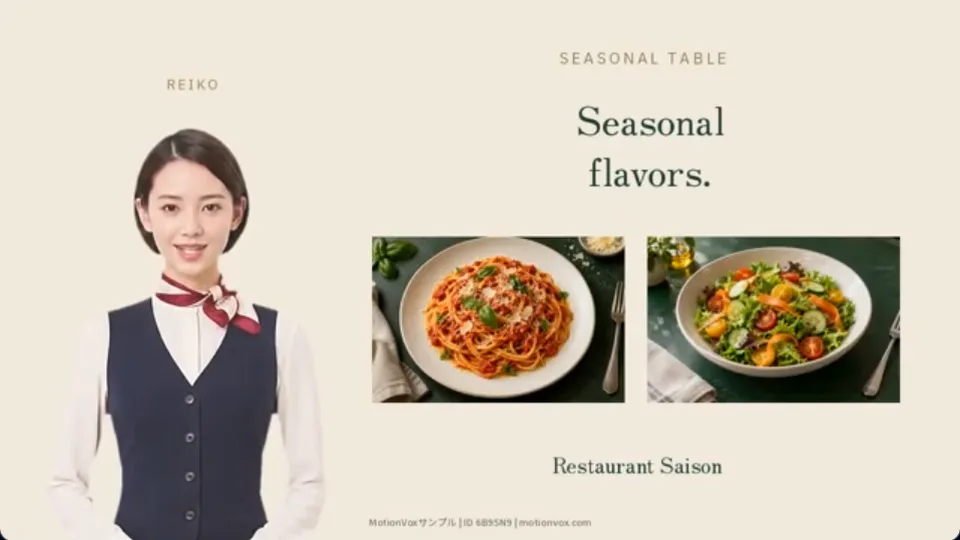
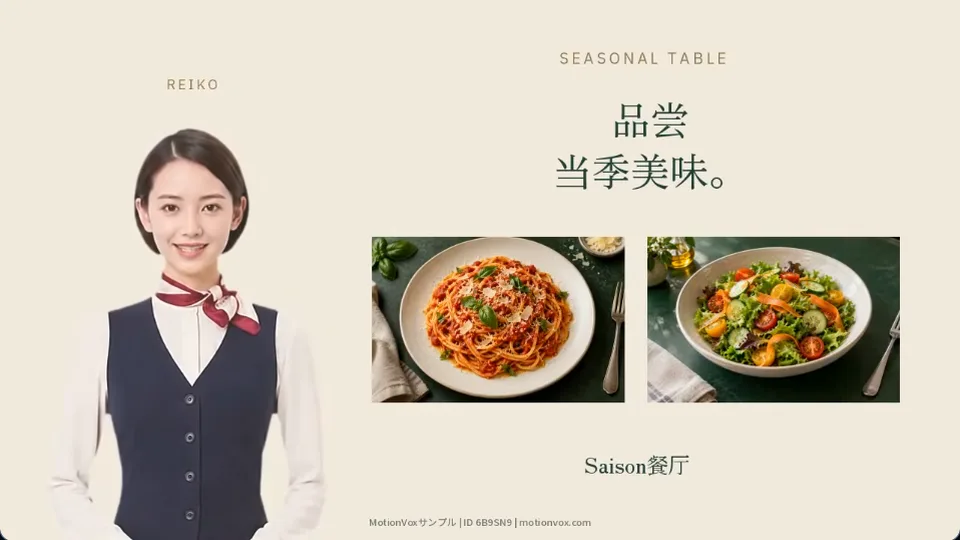
Restaurant: Seasonal Table
A menu introduction combining food photos and an avatar. Play the Japanese, English and Chinese versions right here.
Japanese ▶ Play video English ▶ Play video Chinese ▶ Play video
Edited and generated entirely in MotionVox. Replace the food photos, dish names, prices and script to introduce your own restaurant.
Template ID 6B9SN9 Enter this ID in MotionVox’s template search to find the same template.
Visitor guides, international product introductions and multilingual training. Get your message across languages.
A wide range of emotes. Expressions at the moment you choose.
Nod, look surprised, smile shyly or wink. Give realistic avatars the right reaction for the scene. Choose an emote to add coordinated expressions and head movements.
See the emotes in motion
Single nod Taiki Double nod Chieko Listening response Rina I see Mayu Surprise Sophia Head tilt Seira Left wink Katsumi Right wink Hideko Subtle wink Chloe Looking around Yoshiki Drowsy → startled Kaito Head tilt → smile Camille Composed → soft smile Koki Gentle smile Sachie Look down → look up and smile Sachi Looking around Feudal lord
The emote selection screen
Surprise
Wide eyes and an “Oh!” expression. Show surprise with coordinated facial and head movements.
Wink
End a line or catch the viewer’s attention. Choose a left, right or subtle wink to suit the scene.
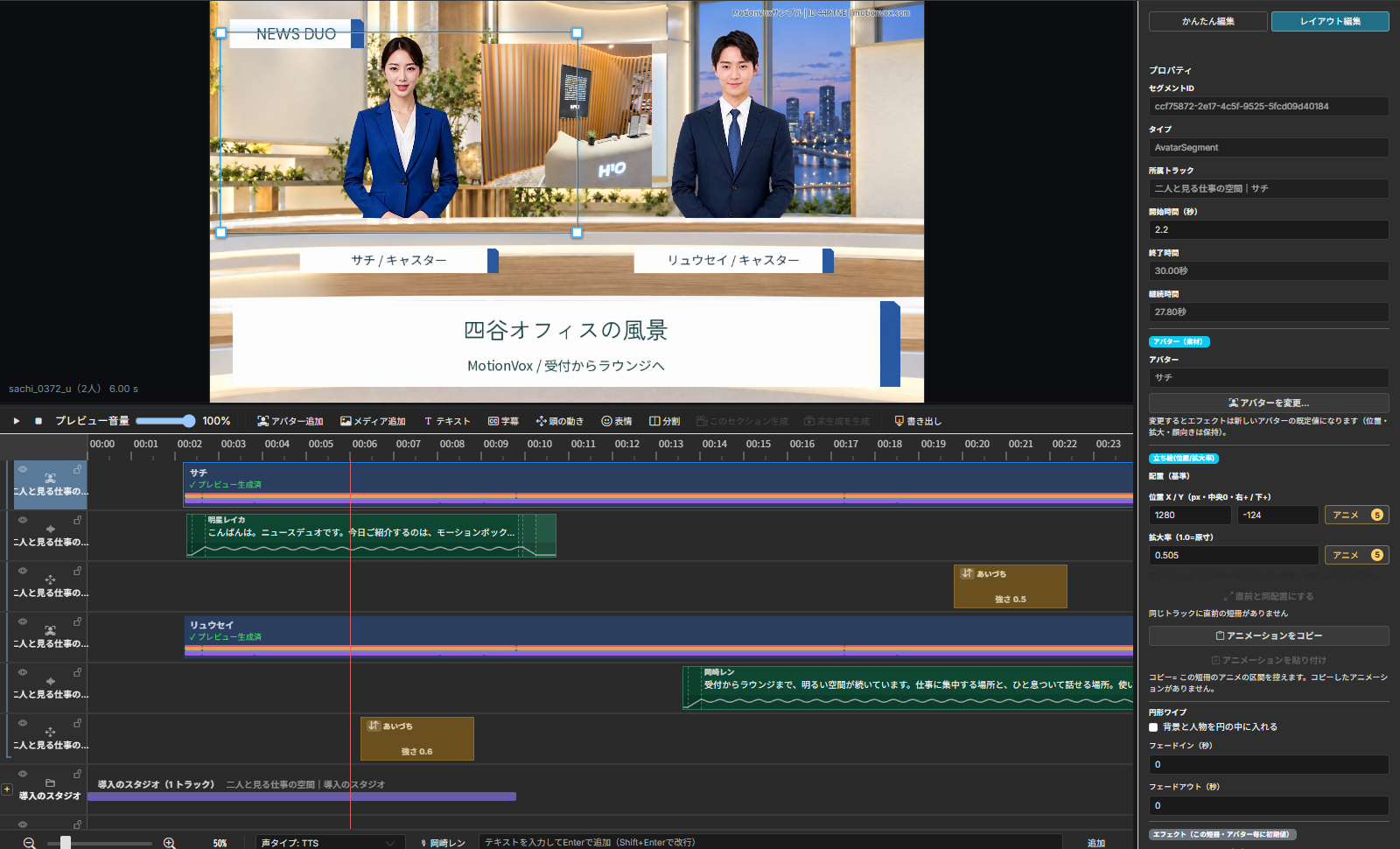
Move the playhead to the moment you want and insert an emote. Add a nod after a point, a listening response during a conversation or a wink at the end. Fine-tune expressions and head motion on the timeline.
Scene changes, avatar placement, audio and subtitle timing are all finished in the MotionVox editor.
Template ID 4A6GSF Enter this in MotionVox’s template search to open the template.
Automatically generate videos from PowerPoint files
Let an avatar present your PowerPoint
A single presenter or a two-person conversation. Create a script from your PowerPoint file, then automatically generate a video with realistic avatars.
One presenter · Play video
One avatar explains your slides
Present your slides and explain them step by step. Ideal for internal training and service introductions.
Two-person conversation
Two avatars explain through dialogue
Turn your slides into a conversation between a presenter and a listener, using questions to bring out the key points.
1
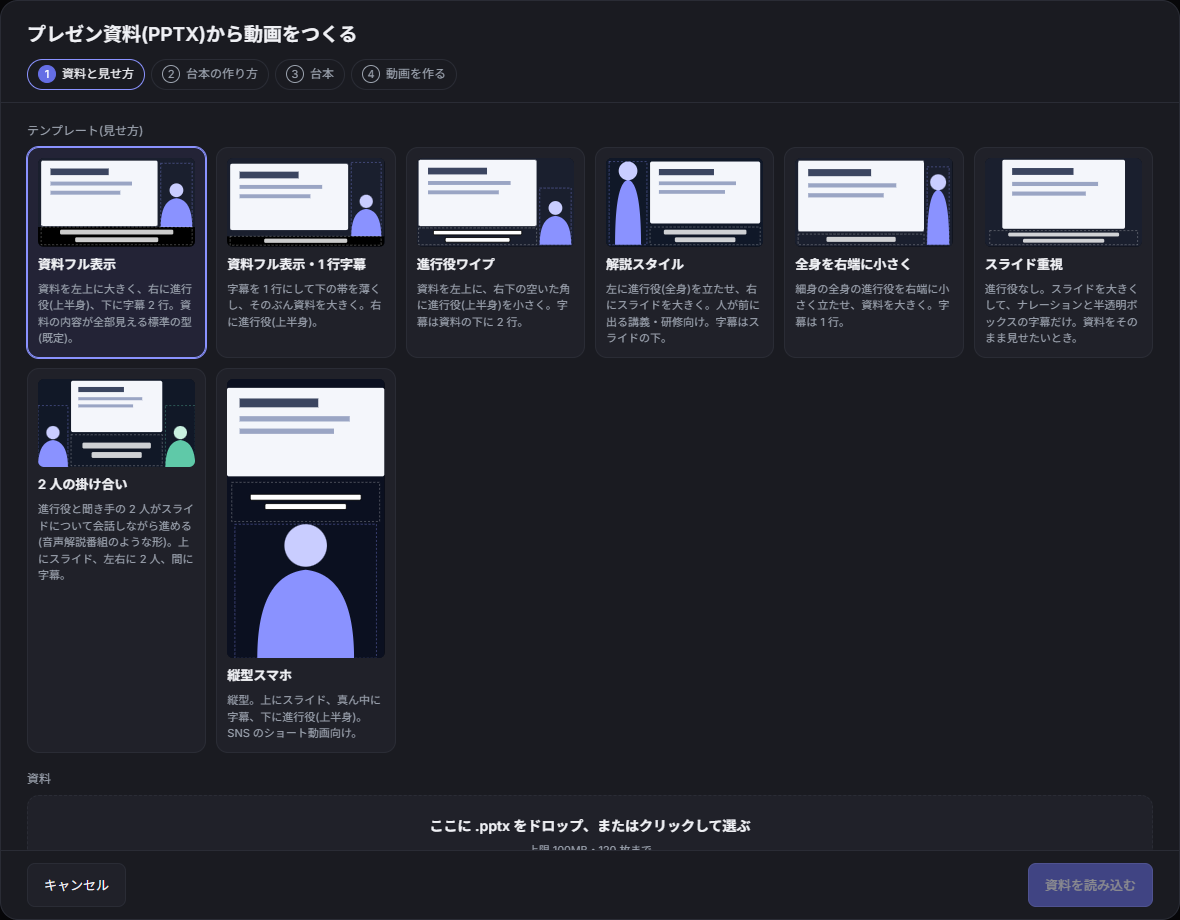
Choose your slides and layout
Show slides large, beside an instructor or between two presenters. Choose the format that suits your content.
2
Generate and edit the script
Let AI write the script, refine it slide by slide, or use your speaker notes.
3
Generate video with voice and subtitles
Choose a voice and delivery, highlight the area being explained, then fine-tune the result in the editor.
Whose likeness and voice will you use? Where will your scripts and slides be processed? Alongside easy video creation, MotionVox supports the requirements of ongoing organizational use.
Rights-conscious Avatars and voices
The data used to create our avatars and voices comes only from performers under contract, with the necessary permissions . We do not collect people’s images or voices from the internet without permission to train our models.
Generated videos support commercial use, including product introductions, corporate communications, employee training and local government announcements.
Processing hosted entirely in Japan
A plan that keeps processing in Japan without sending input data to overseas servers is available for businesses and local governments with data handling and processing-location requirements.
Tell us what information your scripts and slides contain and how your organization manages data. We can discuss a configuration that meets your requirements.
Run in your environment with an on-premises deployment
Our in-house video generation technology also supports on-premises deployment within your own environment . For documents and scripts that are difficult to share with external services, we can discuss an approach aligned with your information management policy.
Support ongoing creation of internal manuals, operating procedures and staff training. Discuss a configuration suited to your user count, video volume and operational requirements.
Tell us about your videos and operational requirements.
Your use cases and teams, such as communications, product introductions, internal training or resident information.
The information in your scripts and PowerPoint slides, and requirements for handling and storing it.
Your user count, generation volume and preferred environment, including Japan-hosted or on-premises options.