Translation and multilingual batch generation
From a Japanese video
to multiple languages in the same voice
Create one Japanese video and reach multiple languages with the same avatar and voice. Translate speech, on-screen text and text inside images, then batch-generate videos. Customize avatars and voices by language and preserve proper-name pronunciation.
The same avatar. The same voice.
From Japanese to English and Chinese, your avatar speaks multiple languages in the same voice, like a bilingual or trilingual person. A consistent appearance and voice make the presenter feel familiar across languages.
You can also choose a different avatar or voice for each language.
Translate text inside images, too
Translate scripts, headings, descriptions and text embedded in images. Use your Japanese video as the basis for multilingual sound and visuals, reducing the need to recreate images for every language.
Names, pronunciation and context matter
Translation accounts for the pronunciation of proper names. For example, the place name Shibuya remains “Shibuya” in English and keeps its Japanese pronunciation in Chinese, rather than being translated literally as “bitter valley.”
Introduce your restaurant in multiple languages
The same appearance and voice, in Japanese, English and Chinese.
Compare the voices and on-screen text in these real videos.
A MotionVox template example
Restaurant: Seasonal Table
A menu introduction combining food photos and an avatar. Play the Japanese, English and Chinese versions right here.
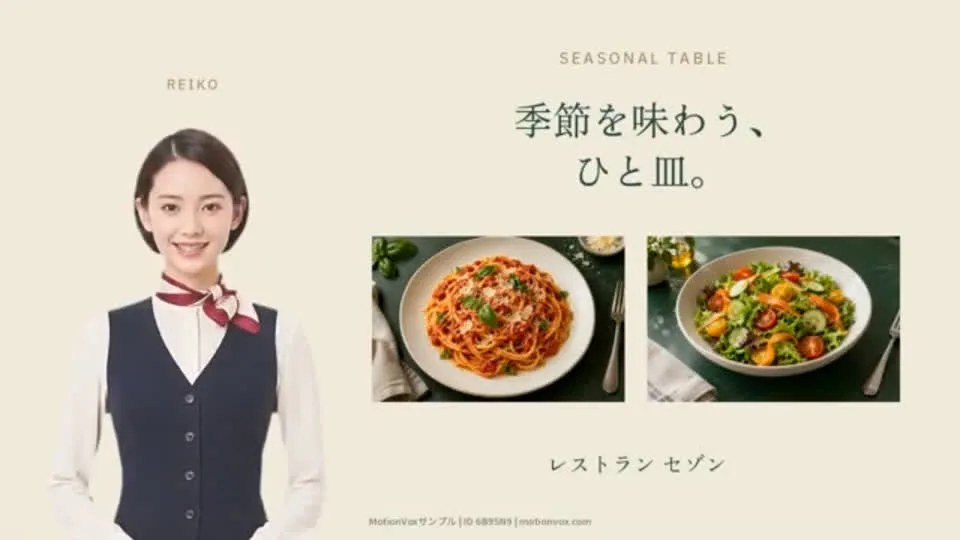

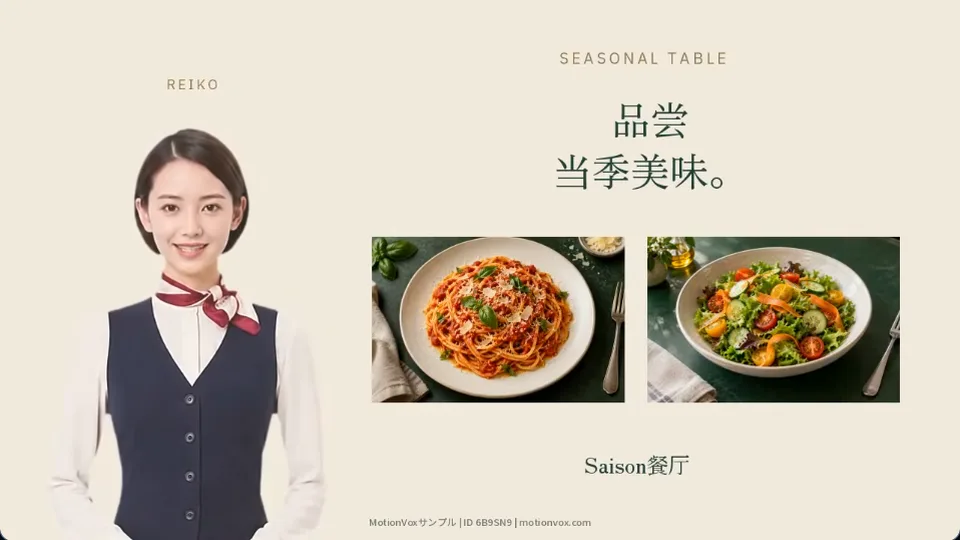
Edited and generated entirely in MotionVox. Replace the food photos, dish names, prices and script to introduce your own restaurant.
Template ID 6B9SN9 Enter this ID in MotionVox’s template search to find the same template.
01 / Choose target languages
Track translation, voice and video progress
Choose your target languages and follow each one’s progress. Turn the original script into translated dialogue and audio, and switch between language versions to review them.
Translate from one script
Start with a single script to share the same message in your target languages.
Check each stage
See translation, audio and video status for each language as you work.
Review your changes
When scripts or settings change, update each language version accordingly. Keep everyday announcements and training current.
02 / Set voices for each language
Keep the same voice or choose by language.
The same avatar can speak multiple languages in the same voice, like a bilingual or trilingual person. You can also select different avatars or voices for each language.
Check every speaker
Even in multi-person conversations, review who speaks with which voice in each language.
Keep the right tone
Choose a voice that suits your guide, training or product introduction.
Review after generation
Check and refine the results in each language, as well as in the original.
03 / Translate on-screen text
Translate headings and text inside images
Translate on-screen headings, explanations and text embedded in images. Reuse the Japanese visuals while localizing both voice and text. Compare originals and translations, and refine wording and line breaks.
Compare with the original
Review headings and descriptions side by side, checking each piece of content.
Refine your wording
Adjust service names, menu items and other terms to match the wording you want.
Keep it readable on screen
Adjust text length and line breaks so viewers can read comfortably.
04 / Configure the glossary and context
Preserve proper names and context
Shibuya stays “Shibuya” in English and keeps its Japanese pronunciation in Chinese. Translation preserves proper names rather than replacing them with literal meanings. Set a glossary, title, description and style to guide names, pronunciation and context.
Glossary
Register preferred translations for product names, facility names and specialist terms.
Video context
Use the title and description to explain the audience and purpose of your video.
Tone of voice
Set the translation style to suit your guidance or explanation.
05 / Generate multiple language versions together
Export multilingual videos in a batch
Select the languages and choose Batch Video Export. MotionVox generates any remaining avatar clips and exports the videos together. Play or download each result, or download all of them.
Choose the languages you need
Export every language or select just the ones you need for your audience.
See progress at a glance
Review processing status and output by language, from generation through export.
Reach more audiences
Create visitor guides, international product introductions and multilingual employee training.
Contact us / Free demo
Contact us / Free demo
Talk to us about the right approach for your audience and use case.
Contact us / Free demo