PowerPoint to avatar video
Let an avatar
present your PowerPoint
Generate a script from PowerPoint and automatically create a video with realistic avatars. Choose one presenter or a two-person conversation, set the layout and voice, then fine-tune the result on the timeline.
Videos generated from PowerPoint
Choose one presenter or a two-person conversation
Choose how to present the same slides.
From a structured presentation
to a conversation driven by questions and answers.
One presenter · Play video
One avatar explains your slides
Present your slides and explain them step by step. Ideal for internal training and service introductions.
Two-person conversation
Two avatars explain through dialogue
Turn your slides into a conversation between a presenter and a listener, using questions to bring out the key points.
01 / Choose a layout for your content
Arrange your slides and avatars
Choose from several layouts to balance people and slides. Match the composition to your content and the screen your audience uses.
| Focus on the slides | Full-screen slides, single-line subtitles and slide-focused layouts keep charts and information prominent. |
|---|---|
| Show the presenter alongside | Choose a presenter inset, an explainer layout or a small full-body presenter at the right edge, balancing presence and readability. |
| Explain through conversation | Place a presenter and listener together to explain the content through dialogue. |
| Go vertical | Start with a portrait smartphone layout designed for vertical screens. |
02 / Configure avatars and voices
Set avatars, voices and speaking speed
Choose people who suit your slides. Set language, voice, speaking style and speed for training, service introductions and more.
03 / Generate and edit the script
Generate a script automatically,
then edit it slide by slide
Generate the script from the slides automatically or work through each page as you review it. You can also use existing speaker notes as the script.
Let AI draft the script
Generate the avatar’s lines from your slides to quickly build a first version of the video.
Review one slide at a time
Compare the slide and script, regenerate or give additional instructions, and confirm the content before making the video.
Use speaker notes
Use your prepared notes as the script and make the most of explanations you already have.
04 / Subtitles, highlights and detailed editing
Add subtitles and highlight frames
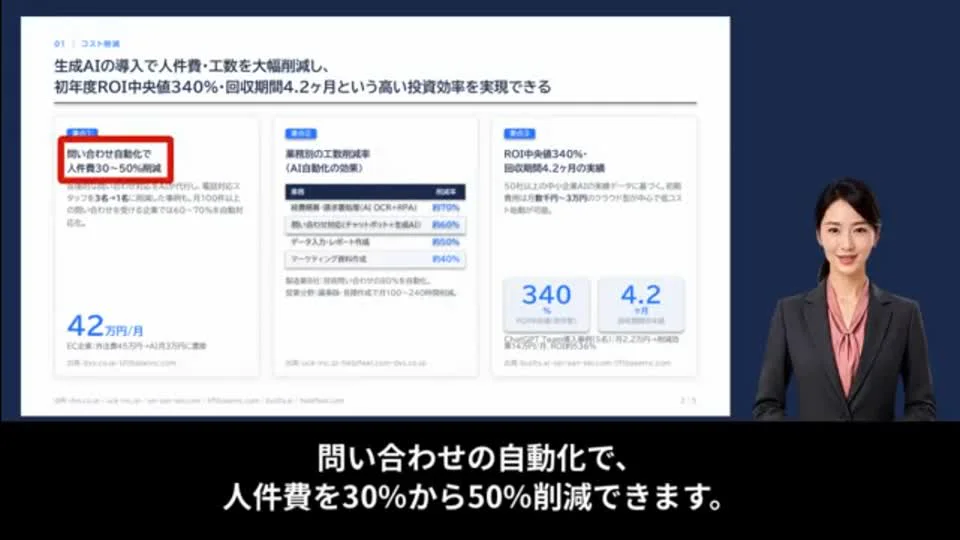
Highlight the area being explained in sync with the narration. Combine highlights, subtitles and presenters, then move into detailed editing after generation.
Add subtitles
Show the spoken explanation as subtitles. Choose the number of lines to suit your layout.
Highlight the relevant area
Connect the explanation to the slide with highlight frames that direct viewers’ attention.
Finish in the editor
Refine scripts, subtitles, avatar placement and scene length in the same editing environment used for template videos.
Contact us / Free demo
Contact us / Free demo
Talk to us about the right approach for your audience and use case.
Contact us / Free demo