MotionVox basics
Enter your script.
Create a talking-avatar video.
Start with the core of MotionVox. Choose an avatar and a voice, then type what you want them to say. Generate a video with natural lip movement, without filming yourself or recording your voice.
Learn the essentials in about four minutes
Choose. Type. Generate.
See the complete workflow in the actual editor, from a blank project to an exported video.
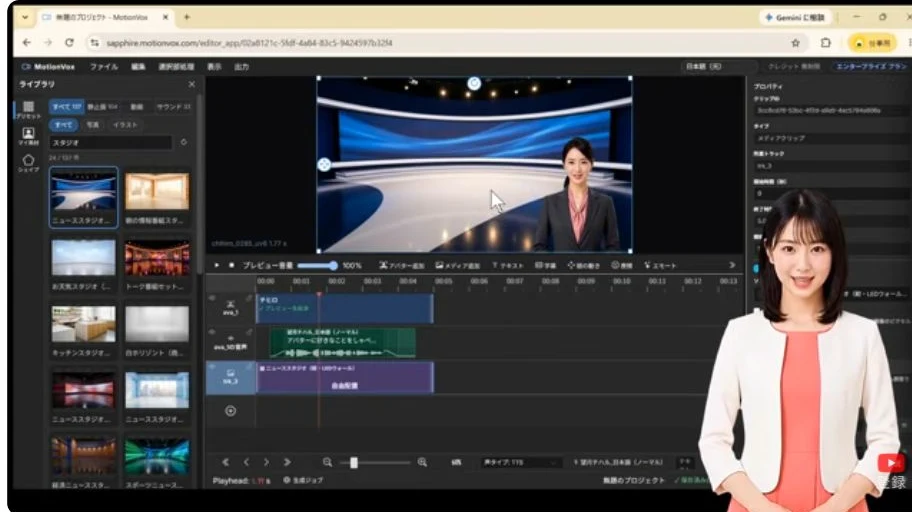
Your first video in six steps
00:12
Create a new project
Start with a blank project and build a video around your message.
00:23
Choose an avatar and voice
Find a presenter by category or framing, then preview voices to choose the right combination.
01:28
Enter your text and preview the audio
Type what you want the avatar to say and generate the audio in your chosen voice. Listen and refine your script before generating the video.
01:53
Generate your talking-avatar video
Generate a video clip of your avatar speaking with natural lip movement matched to the audio.
02:31
Add a background and adjust the layout
Add an image or video from the library as a background. Use the mouse to adjust the avatar’s position and size.
03:21
Preview and export
Play back the result and export a video file for announcements, training, tutorials, product introductions, and more.
Refine the audio first
Check your script and audio first, then generate the video clips together. This helps avoid repeatedly generating video while you are still refining the script.
Keep editing after generation
Combine backgrounds, captions, slides, and audio on the timeline to turn a talking-avatar clip into a complete video.
Explore video editing ↗About Text to Avatar
Do I need to film myself or record my voice?
No. Choose an avatar and voice, then enter the text you want them to say.
How is this different from Selfie to Avatar?
Text to Avatar generates speech and a talking video from your written script. Selfie to Avatar transfers facial expressions and head movements from a recorded selfie video.
Selfie to Avatar ↗Can I use the video in other languages?
Use automatic translation and multilingual batch generation. Preserve the character of the same voice across languages, or choose different avatars and voices for each language.
Explore multilingual generation ↗Contact us / Free demo
Explore real screens and examples tailored to your use case.
Contact us / Free demo