
MOTIONVOX GUIDE
Make a video just by chatting
Describe the video you want and get proposals and a draft script (a beta feature). Short tutorials cover each stage, from starting the conversation to revising, finishing in the editor and saving the video.
Choose a guide
-
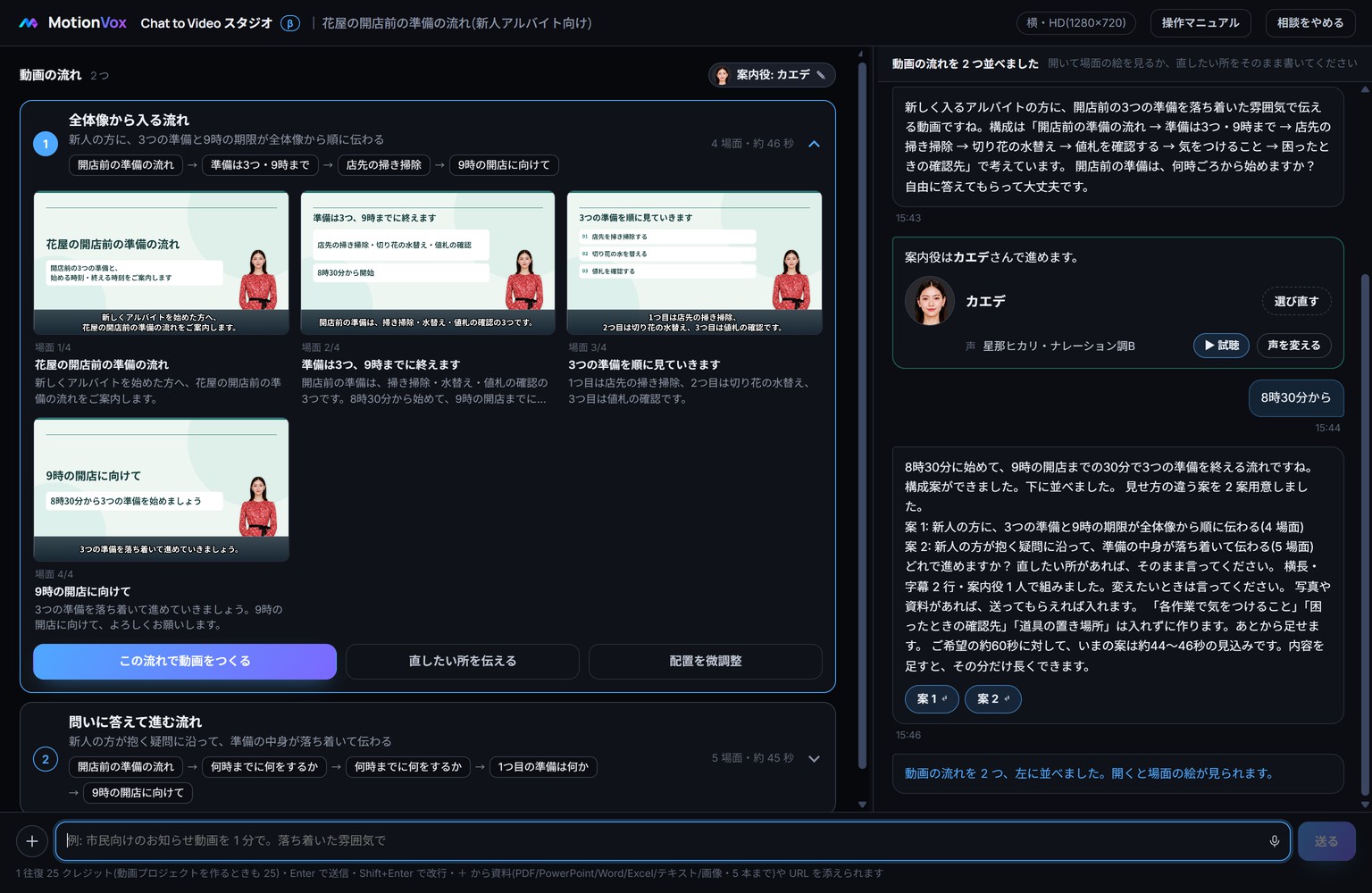
The whole path: from a conversation to a video (beta) β
See on one page how a conversation becomes proposals, a draft in the editor and a saved video. Each stage has its own tutorial in this chapter.
-
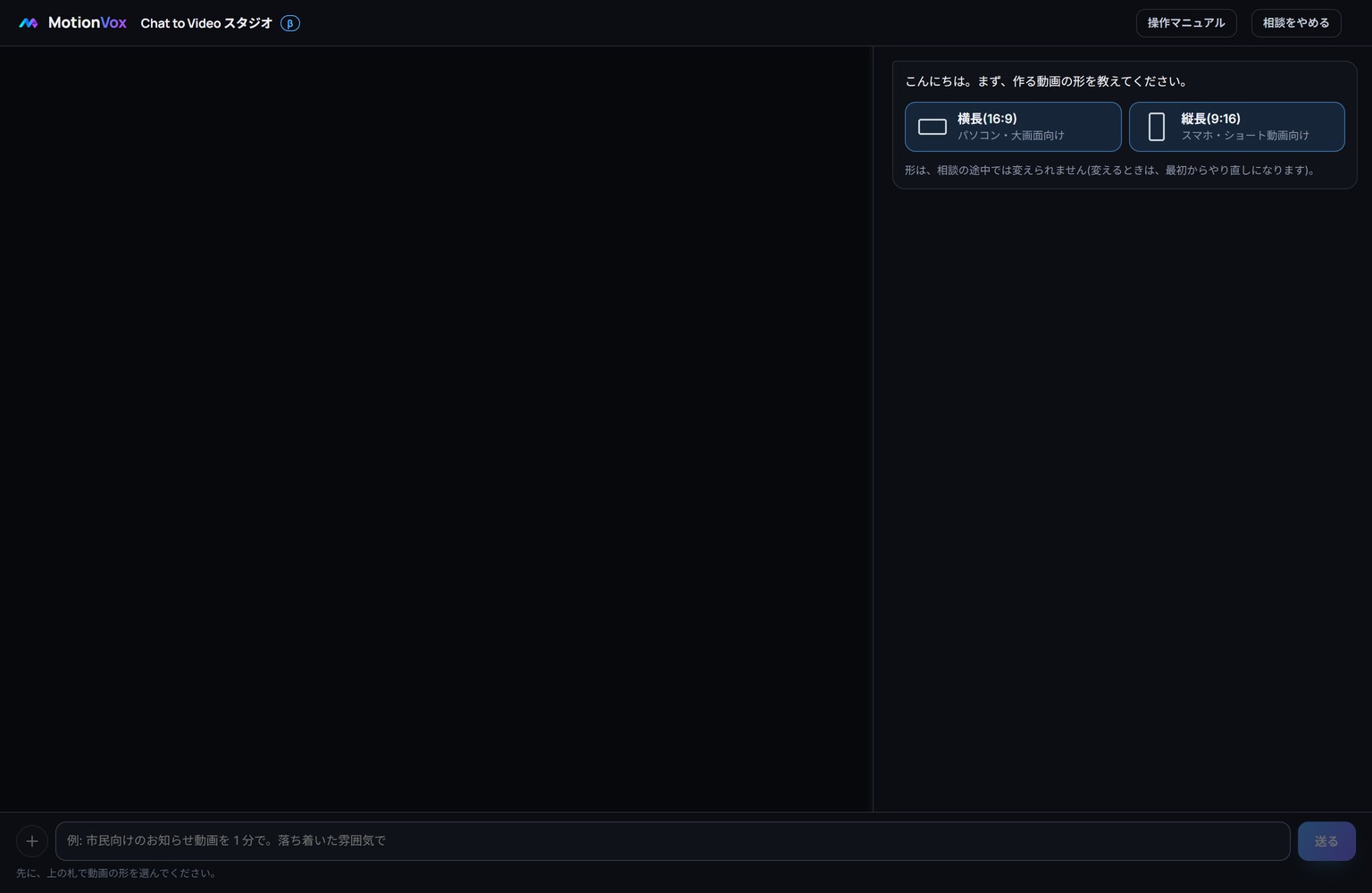
Open the studio and choose the video shape β
Open Chat To Video Studio from the home screen, choose landscape or portrait, and learn what is where.
-
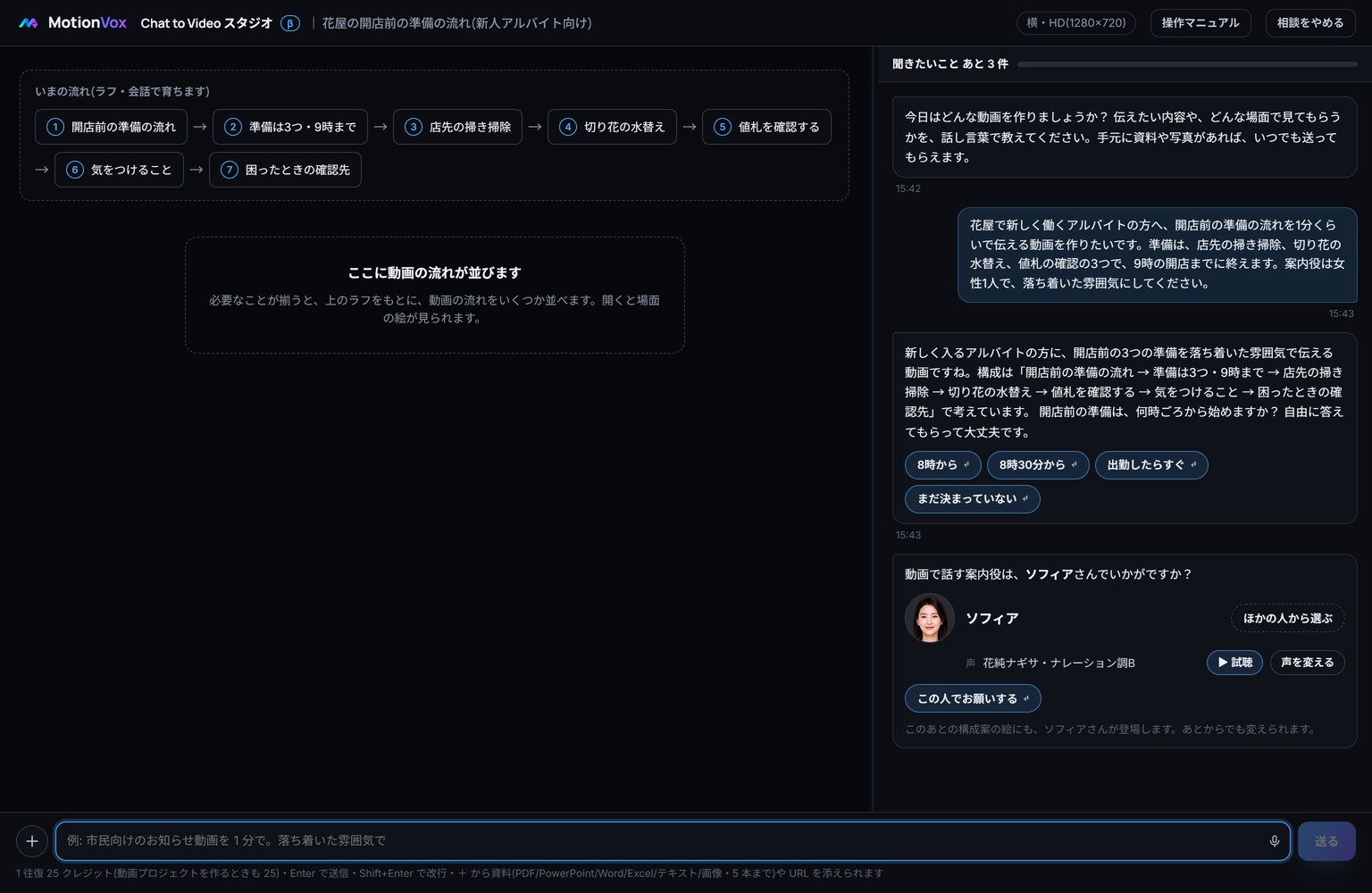
Describe the video you want β
Write who the video is for, what it says and how long it is; read the reply and answer its question. Includes how long to expect to wait.
-
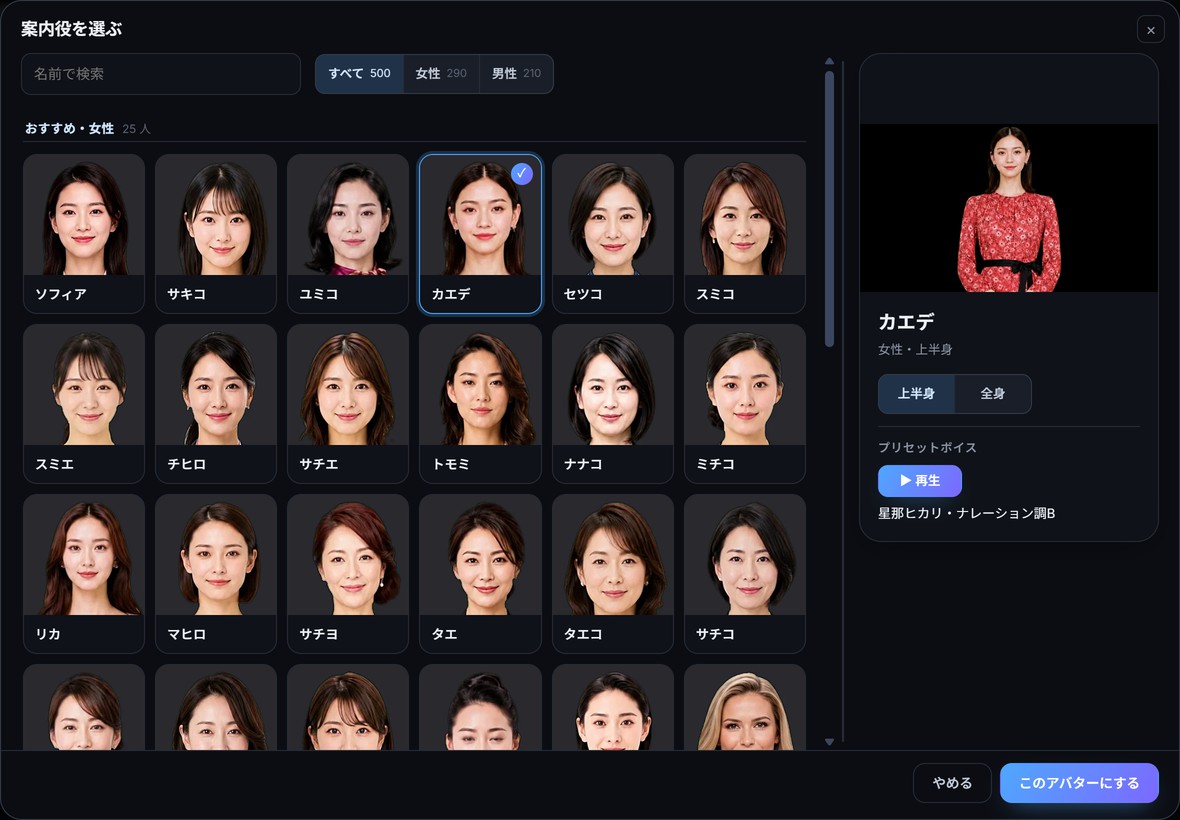
Check and change the suggested presenter β
Check the avatar suggested for your video, switch to another one from the list and see how the voice is chosen.
-
Compare the proposals β
Open the proposals and compare order, number of scenes, length, on-screen text and lines. Also shows how to view a scene large and where layout fine-tuning lives.
-
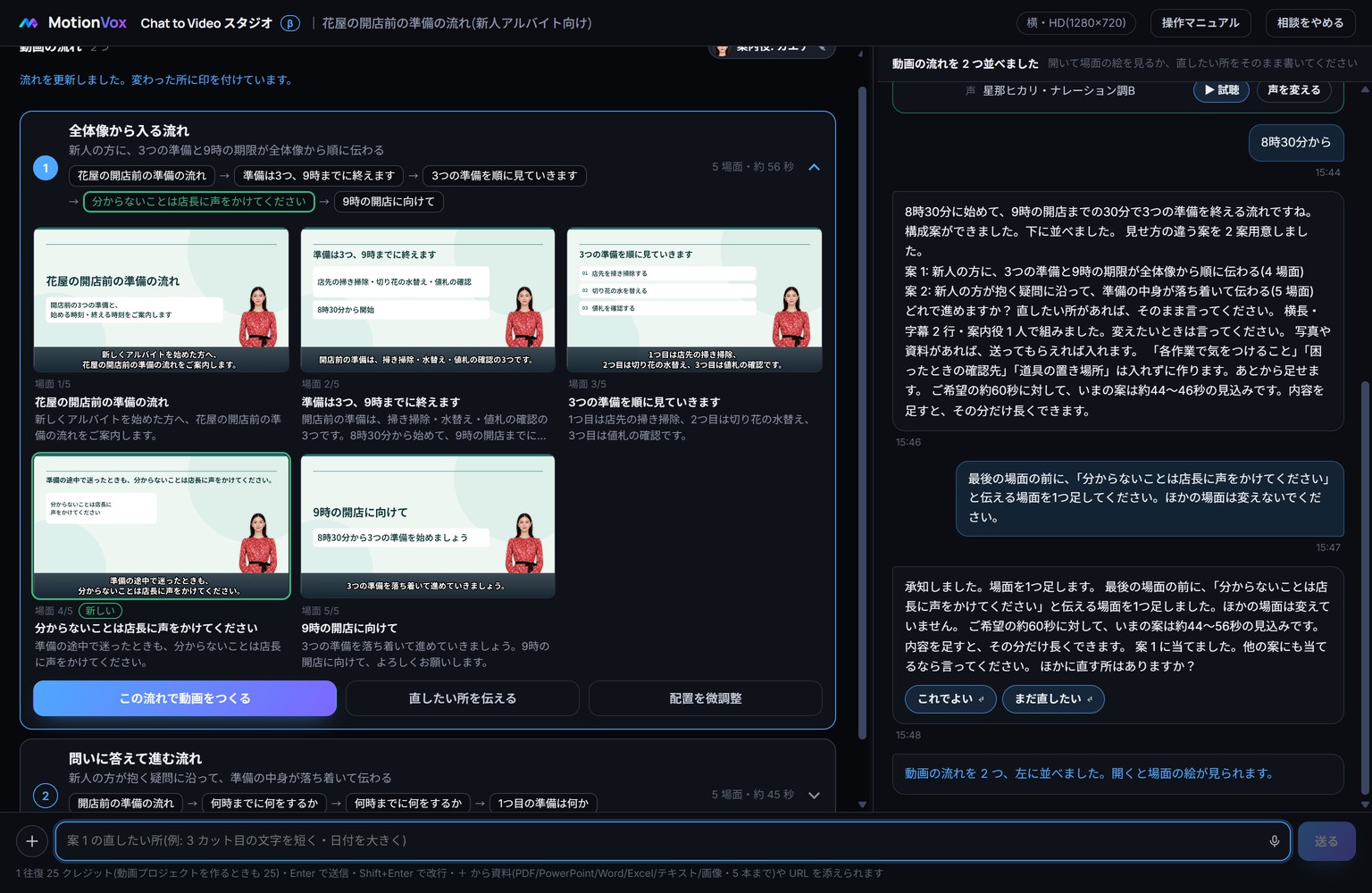
Tell it what to change β
Say where and what to add or change, then reread every scene of the result.
-
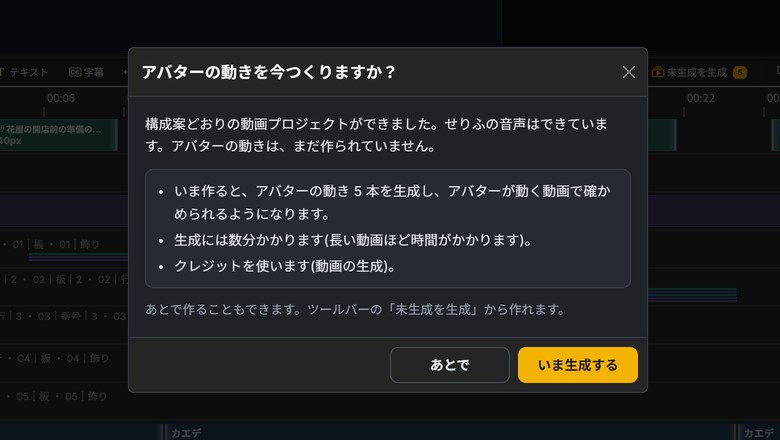
Move to the editor (and what to do if you cannot) β
Turn the proposal into a video project and move to the editor. Also covers what to do when you cannot proceed.
-
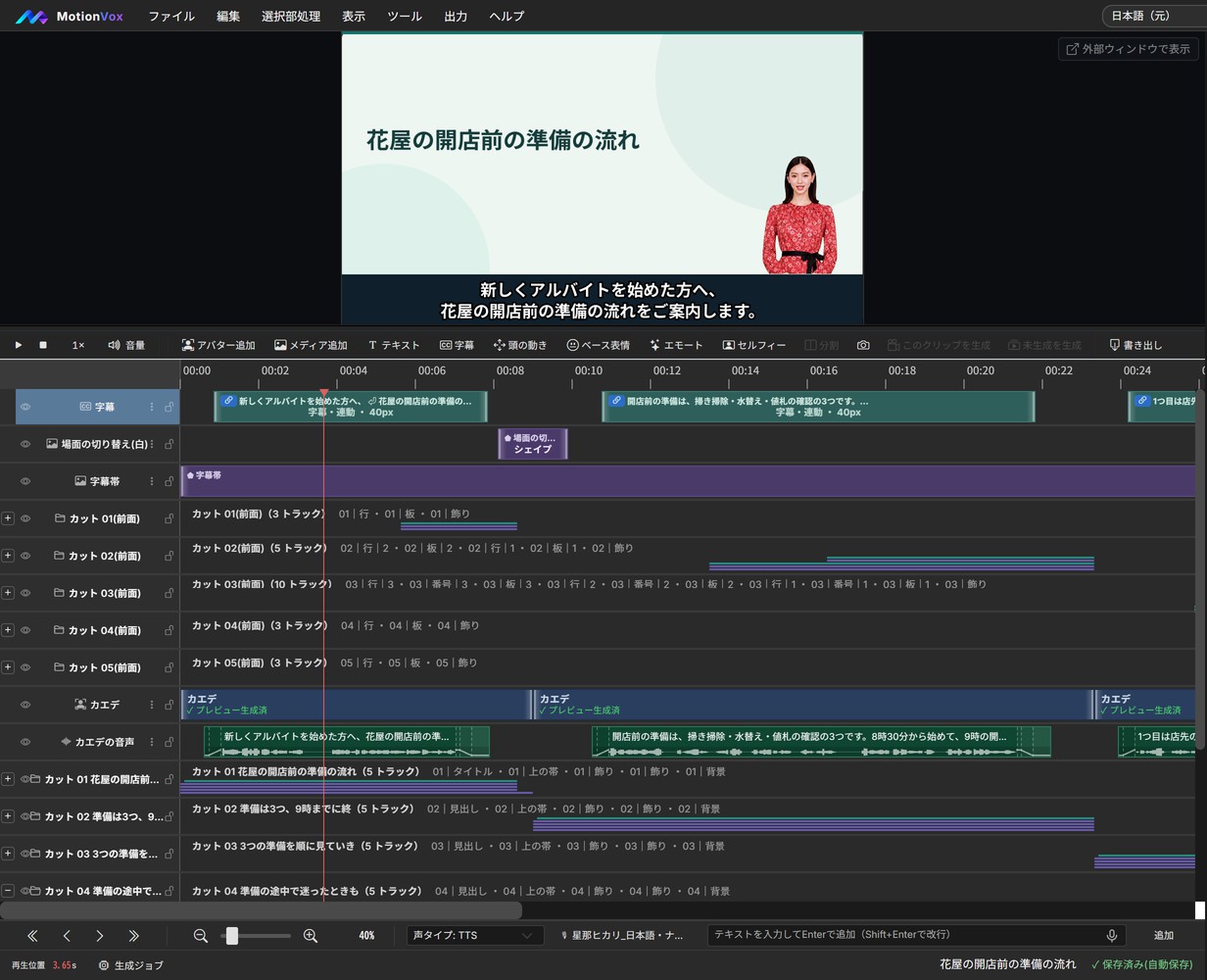
Check the handed-off draft and generate the video β
Check what was handed off to the editor, set body motion and generate the avatar footage. Also covers what to do when generation stops partway.
-
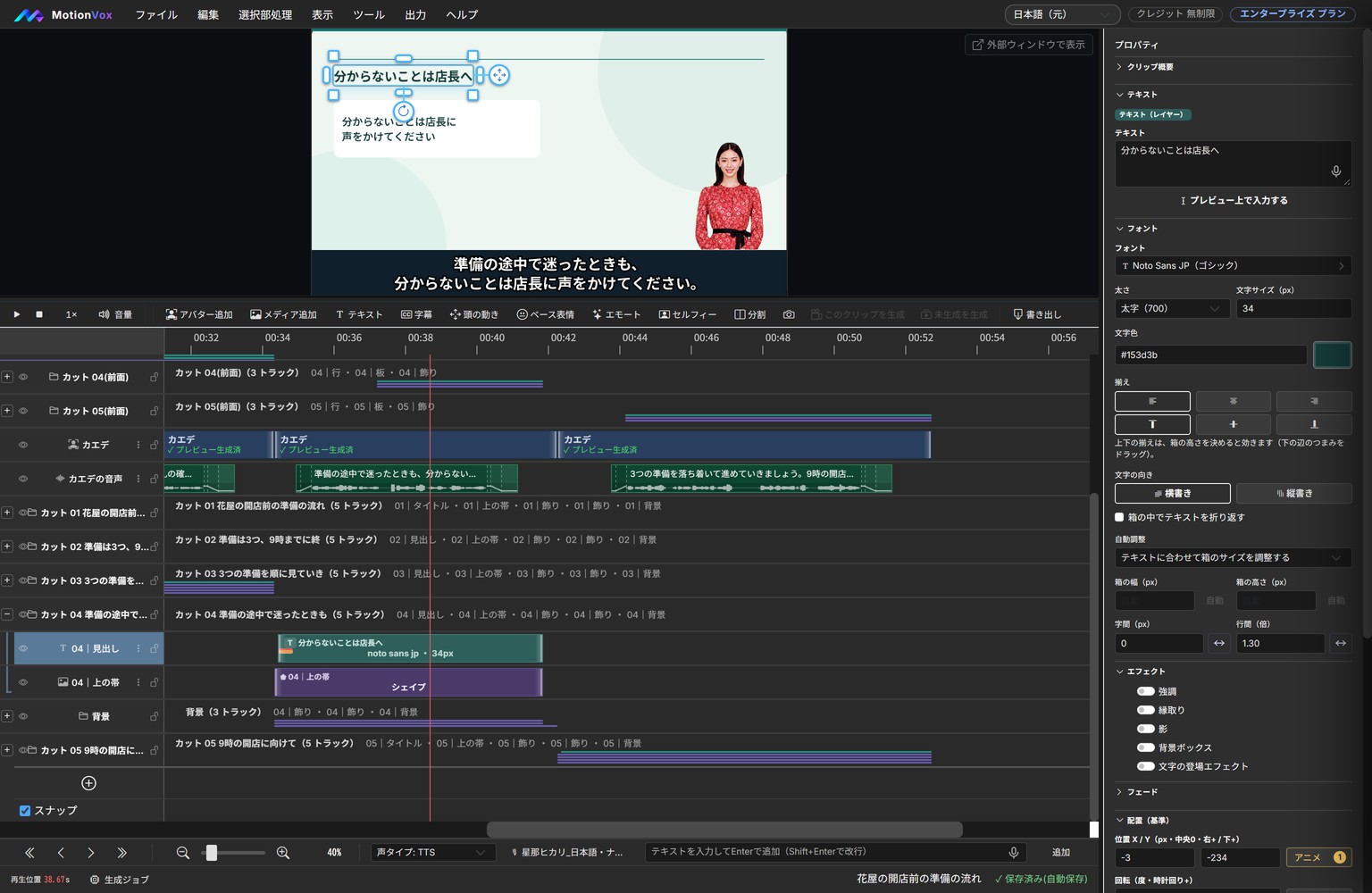
Fix on-screen text and subtitles in the editor β
Retype text inside a scene, and learn where subtitles are edited and what happens when you edit them.
-
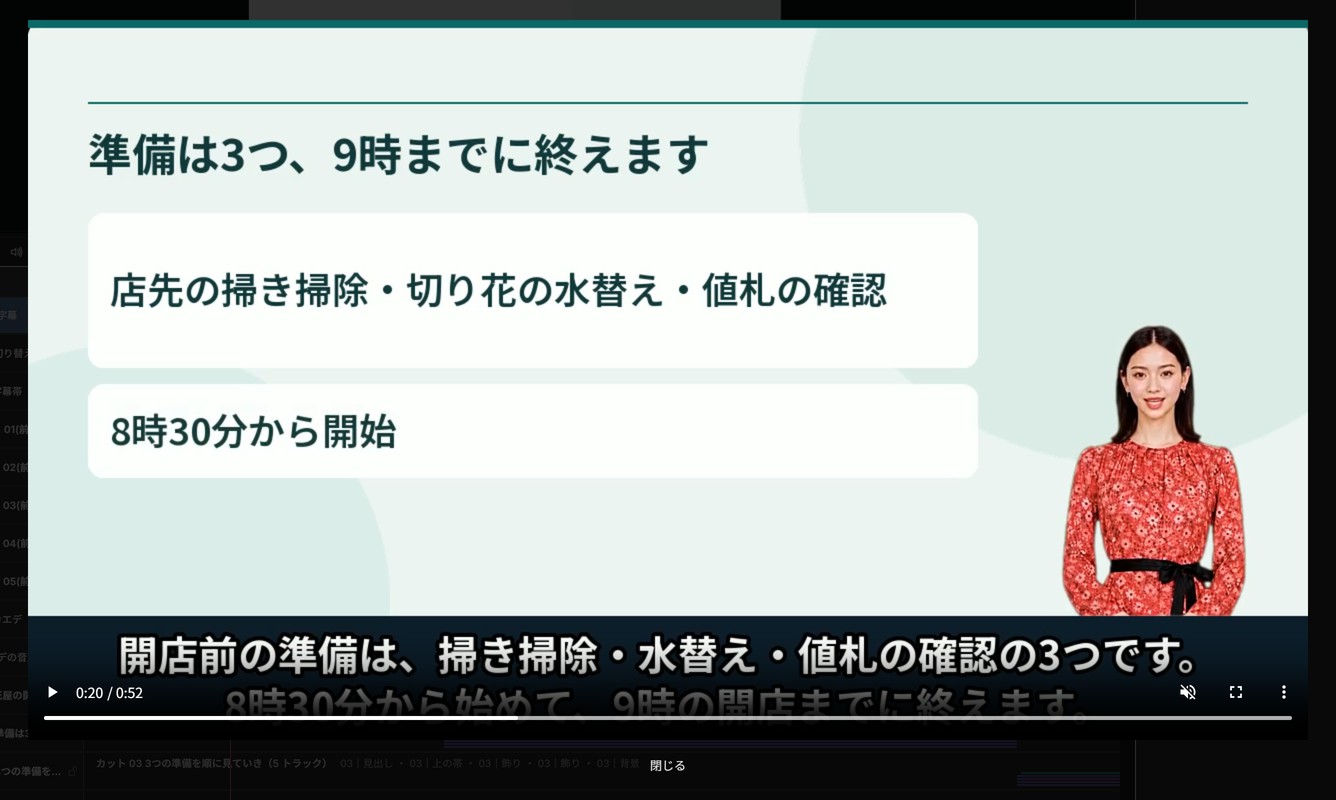
Save and export the MP4 β
Save the project, confirm it survives reopening, export the MP4 and download the finished video.
No matching guides
Try a shorter term such as captions, voice or save. Clearing section and topic filters may help.