
MOTIONVOX GUIDE
A clear path to your next video.
From your first video to everyday editing. Choose a goal or find the operation you need.
FIRST VIDEO / START HERE
Start from scratch. Make your avatar speak.
Create an empty project, add an avatar, choose a voice and enter a short line. Start by generating and playing your first talking-avatar preview.
Make your first video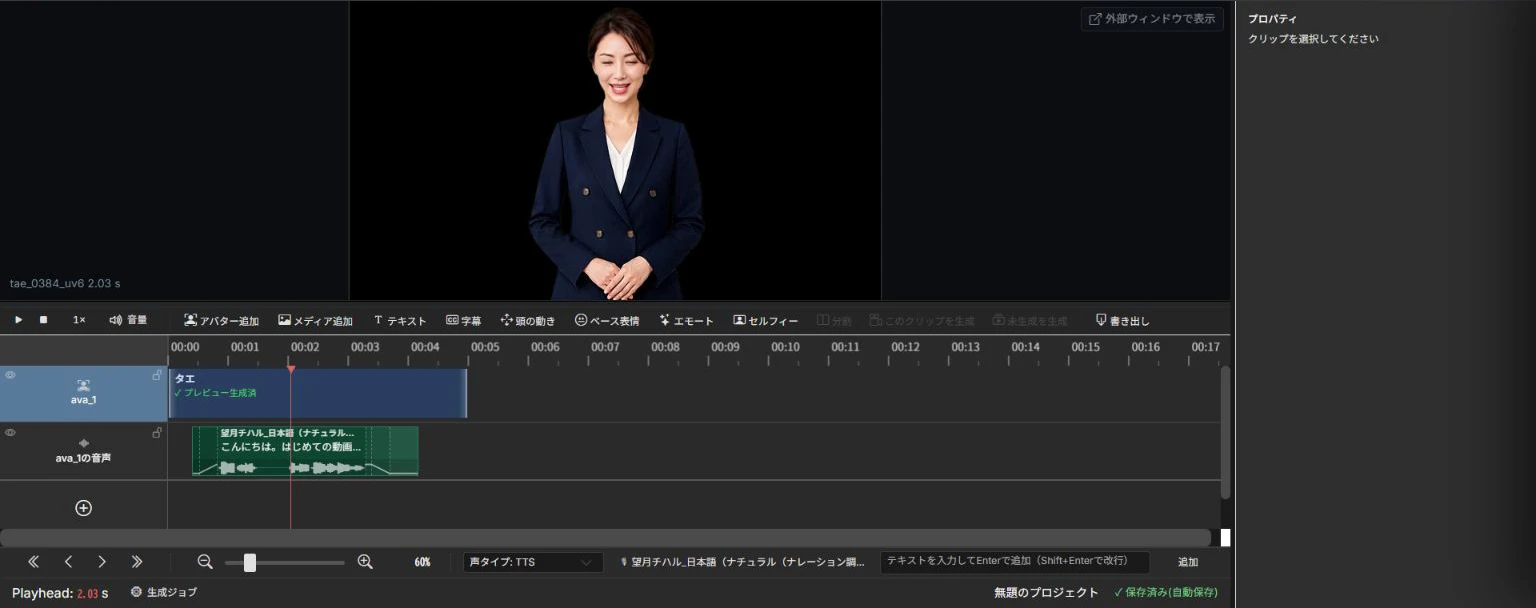
Build your skills, one step at a time.
Once your avatar speaks, add a little more to the same project. Templates come after the essentials.
01 / BY PURPOSE
Choose what you want to create
From preparation to final review, in the right order for your goal.
Start from scratch: make your first talking avatar
Create an empty project, add an avatar, choose a voice, enter a short line, then generate and play it. That is all you need for your first lesson.
11 steps↗Create training and procedure videos
Combine explanation, an example and a recap in a focused training video.
4 steps↗Translate training for international employees
Use a Japanese training project to create versions with language-specific voices and captions.
4 steps↗Prepare multilingual exhibition explainers
Make the product prominent and help visitors understand it quickly.
4 steps↗Create accessible public announcements
Use translated versions, easy Japanese and ruby captions to reach international residents.
4 steps↗Turn PowerPoint slides into an explainer
Import slides, review the script and narration, and finish in PowerPoint to Video Studio.
4 steps↗Develop a video draft through conversation
Compare outlines based on your message in Chat To Video Studio (Beta).
4 steps↗Create a video with your own avatar and voice
Register a photo, prepare and audition a voice, then assign it to your avatar.
4 steps↗Create a short portrait video
Start with a portrait template and leave clear space for the face, message and captions.
4 steps↗Update an existing video
Keep the source project and check updated content, including translated versions.
4 steps↗02 / BY FEATURE
Find a specific operation
Go straight to the instruction you need.
Choose a template and replace its text
Use Easy edit to change the content while viewing each scene.
4 steps↗Enter dialogue, choose a voice and generate
Enter what the presenter should say, then check pronunciation and timing in the preview.
4 steps↗Add images, video and backgrounds
Select media and adjust its position and timing.
3 steps↗Place headings and on-screen text
Place key points on screen separately from the spoken dialogue.
3 steps↗Add and refine captions
Create captions from dialogue and check their position, length and timing.
3 steps↗Correct the pronunciation of names
Keep the displayed spelling while reviewing how names are spoken.
3 steps↗Manage translations, voices and language versions
Review source and translated versions separately.
3 steps↗Use easy Japanese and ruby captions
Offer an easy Japanese version alongside translated languages.
3 steps↗Adjust facial expression and head motion
Add expressions and movement where they support the message.
3 steps↗Create an original avatar from a photo
Review the source photo and use the resulting avatar in the editor.
3 steps↗Register, audition and assign a voice
Prepare the audio, register the voice and assign it after completion.
3 steps↗Export an MP4 and review it
Preview generation and exporting the full video are separate steps.
4 steps↗Save and duplicate projects
Preserve your work and keep versions for different uses or revisions.
3 steps↗Choose a presenter and body view
Find a presenter and choose an available appearance and voice for the scene.
3 steps↗No matching guides
Try a shorter term such as captions, voice or save. Clearing topic and guide-type filters may help.
Ask us for help →NEED A HAND?
Need help moving forward?
Tell us what message you see and which step you are on. Please do not send passwords or other secrets.