
MOTIONVOX GUIDE
Turn a PowerPoint deck into a presentation video automatically
Load a PowerPoint deck and MotionVox drafts the script and narration, then an avatar presents your slides. Short tutorials cover each stage, from loading the file to fixing the script and saving the video.
Choose a guide
-
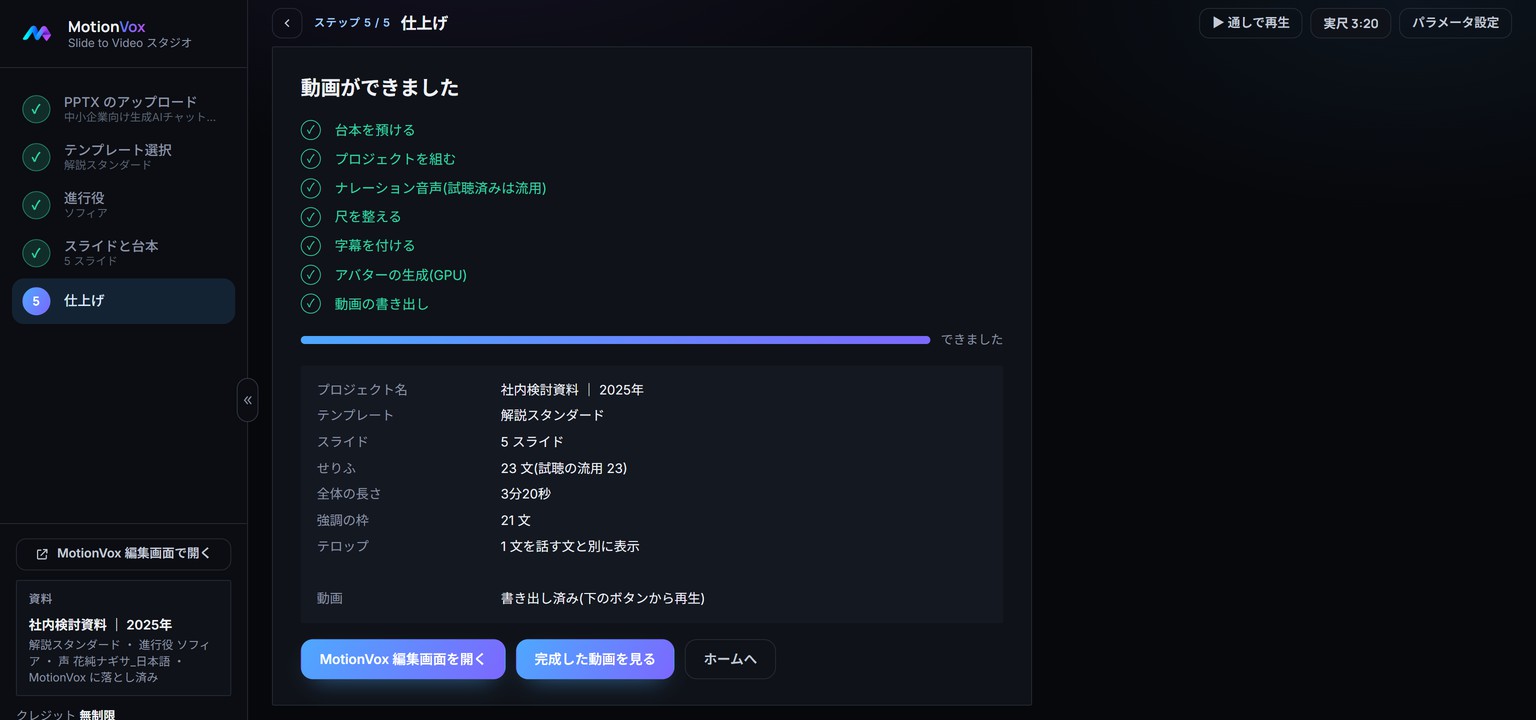
The whole path: from a PowerPoint deck to a video
See on one page how a five-slide deck became a 3 minute 20 second video presented by an avatar. Each stage has its own tutorial in this chapter.
-
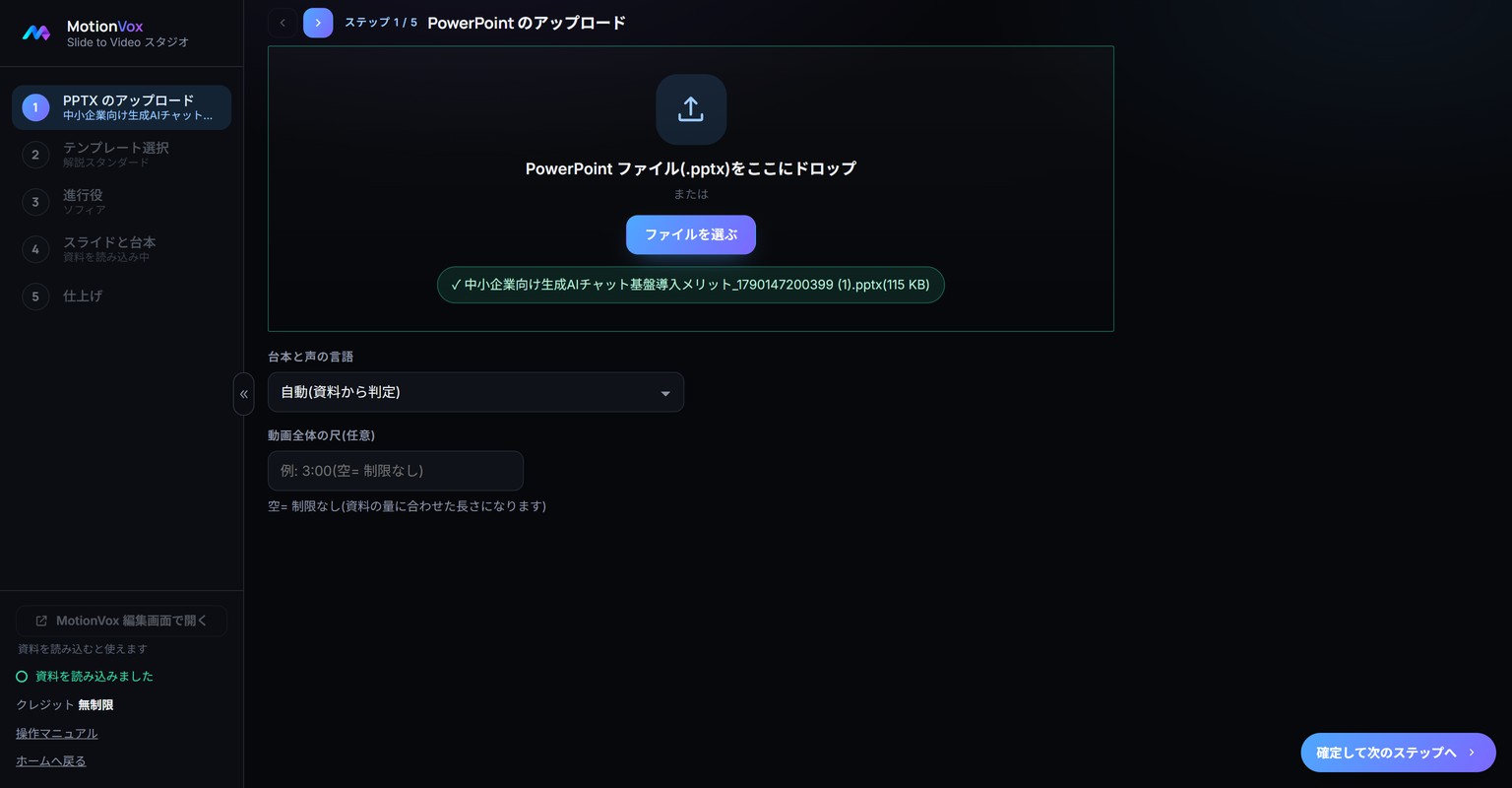
Load a PowerPoint deck
Open Slide to Video Studio from the home screen and load a PowerPoint file (.pptx).
-
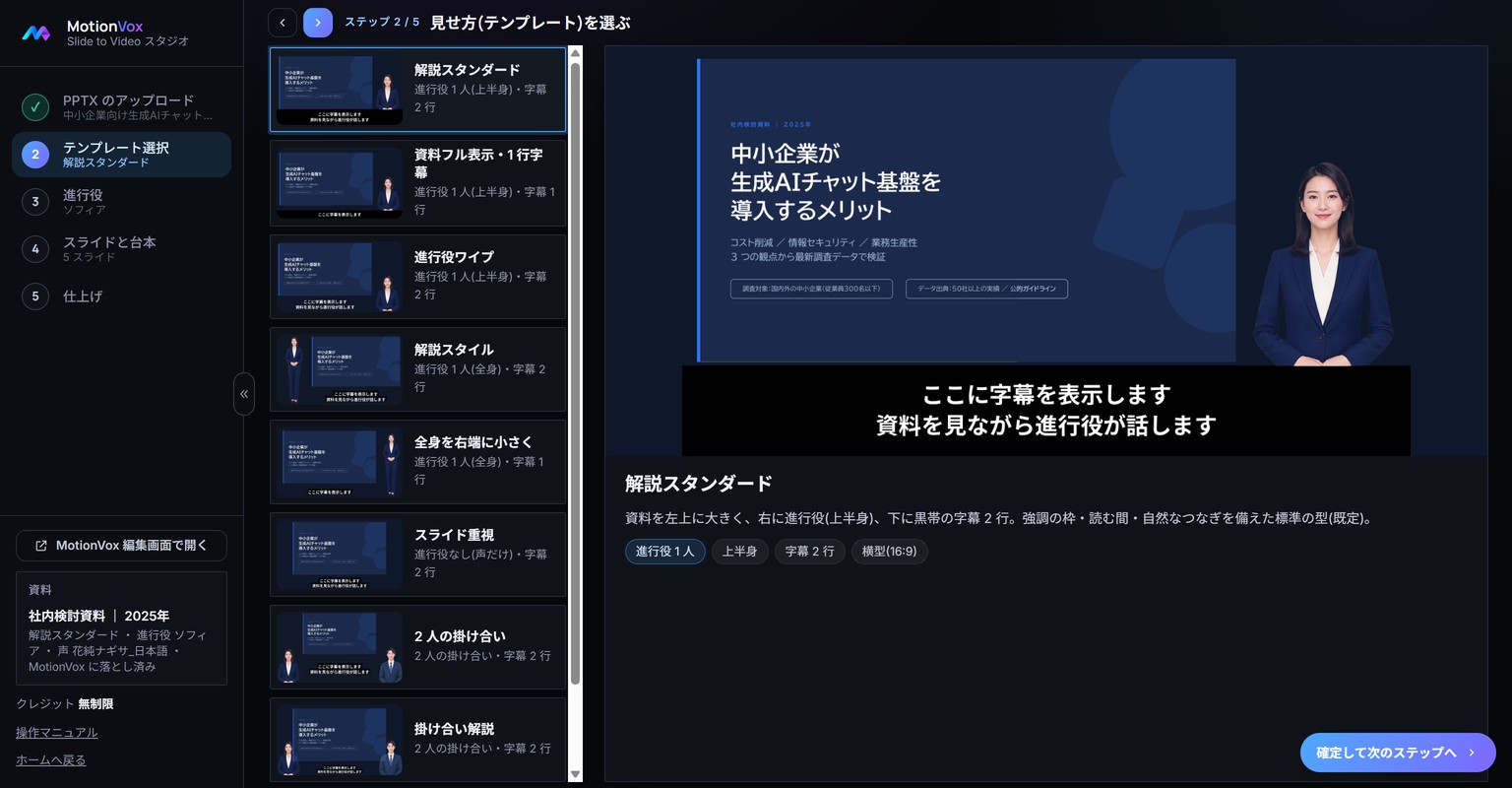
Choose how the slides are shown
Pick a style that decides how the slides and the presenter are arranged on screen.
-
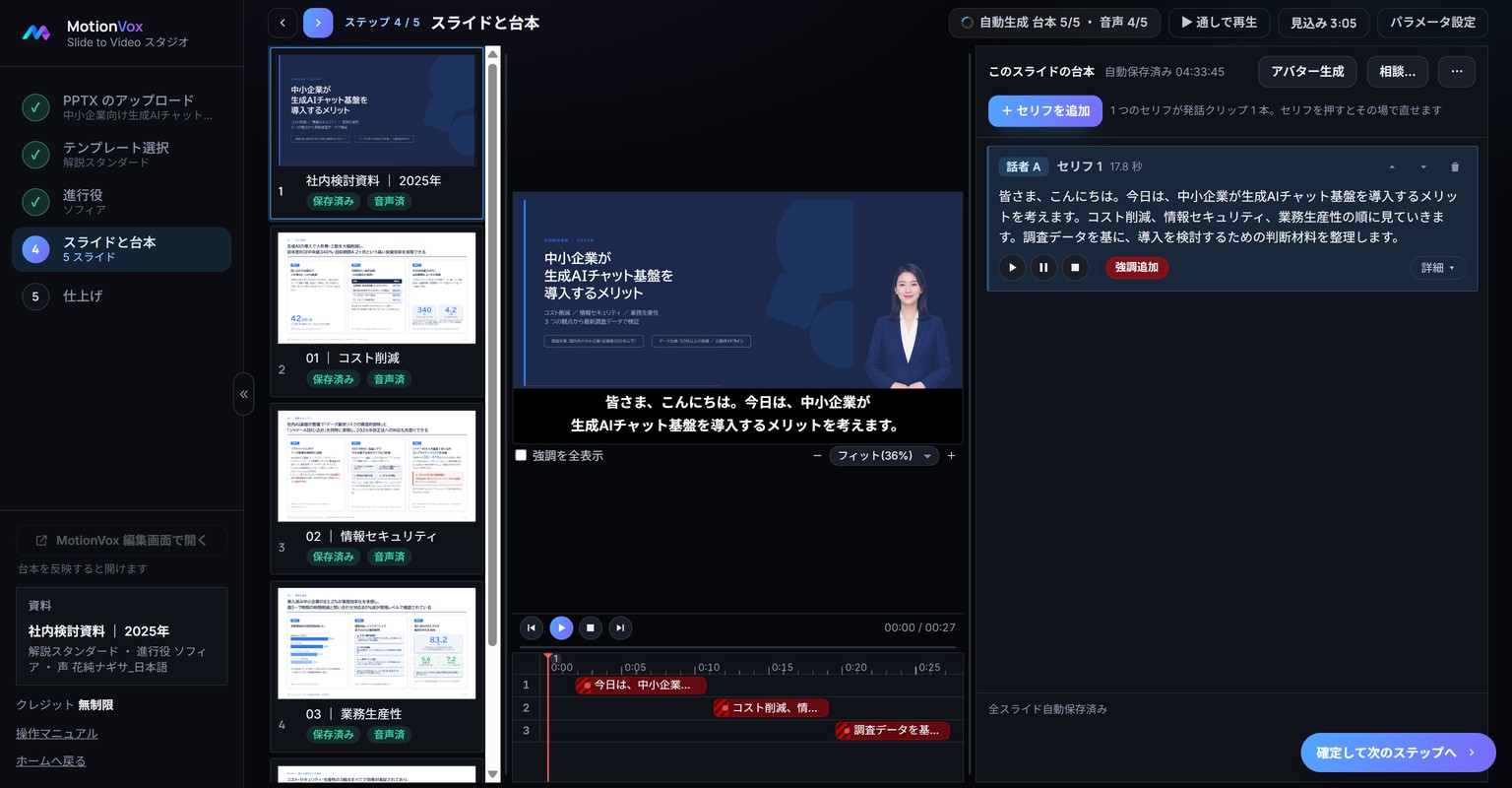
Create the script and narration automatically
Let MotionVox draft the presenter’s script and narration from your slides. Learn how to read the confirmation and how long to wait.
-

Choose the presenter and voice
Choose the avatar who presents your slides and check the voice.
-
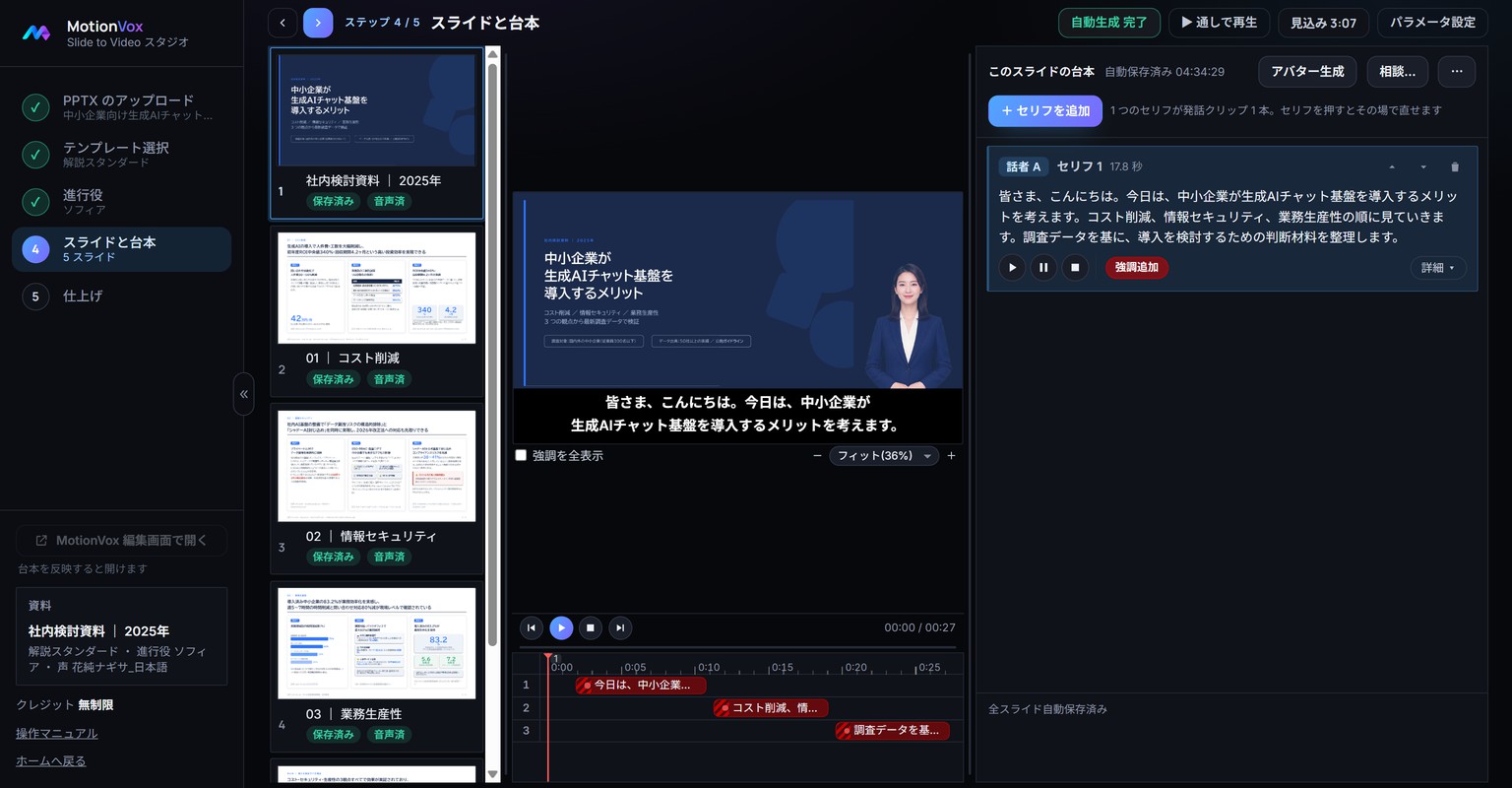
Find your way around the Slides and script screen
Before fixing the script, learn what is where on the screen.
-
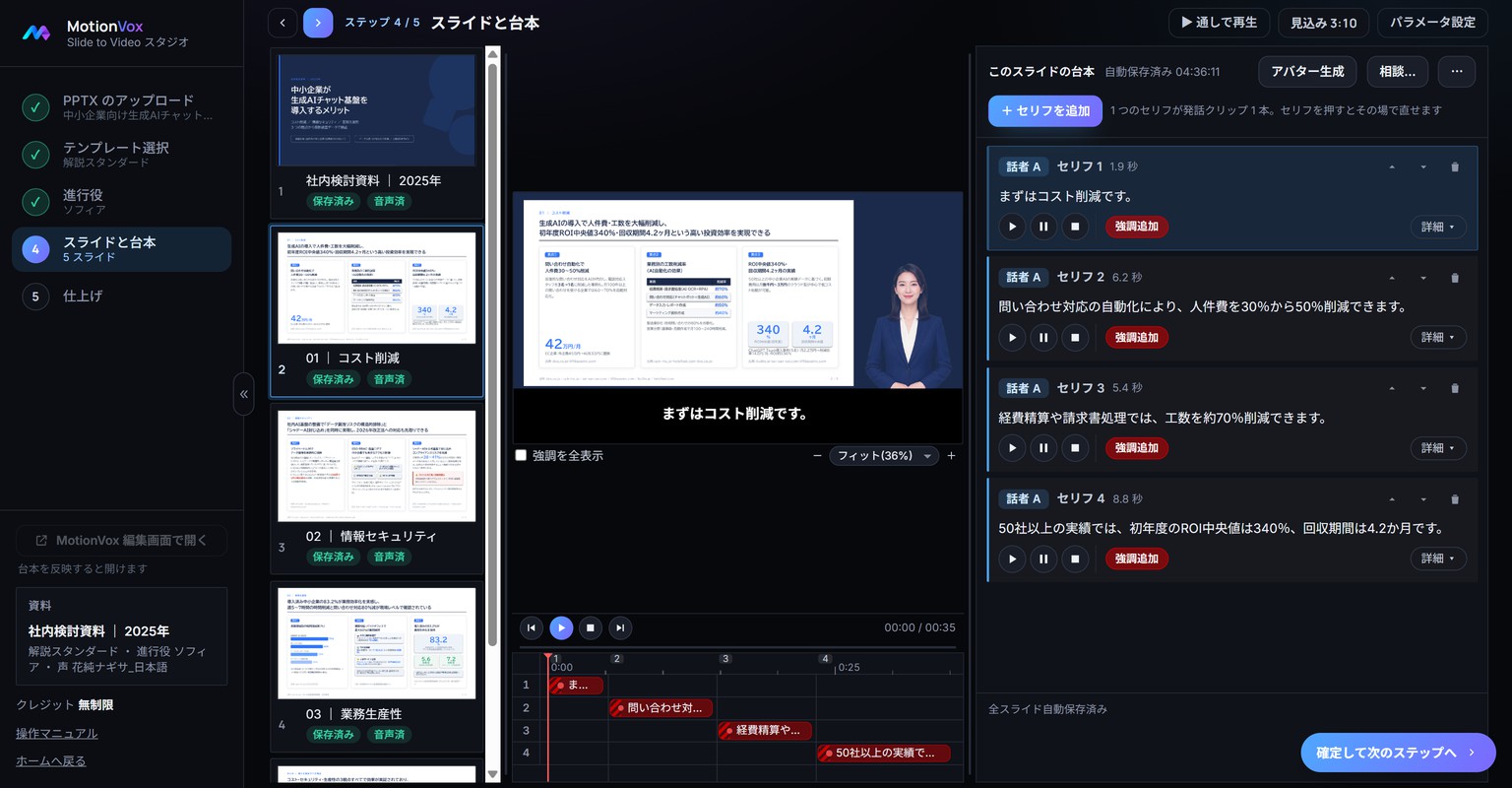
Split a long line into sentences
If a slide’s explanation is one long line, split it into one line per sentence so that you can recreate just the sentence you change.
-
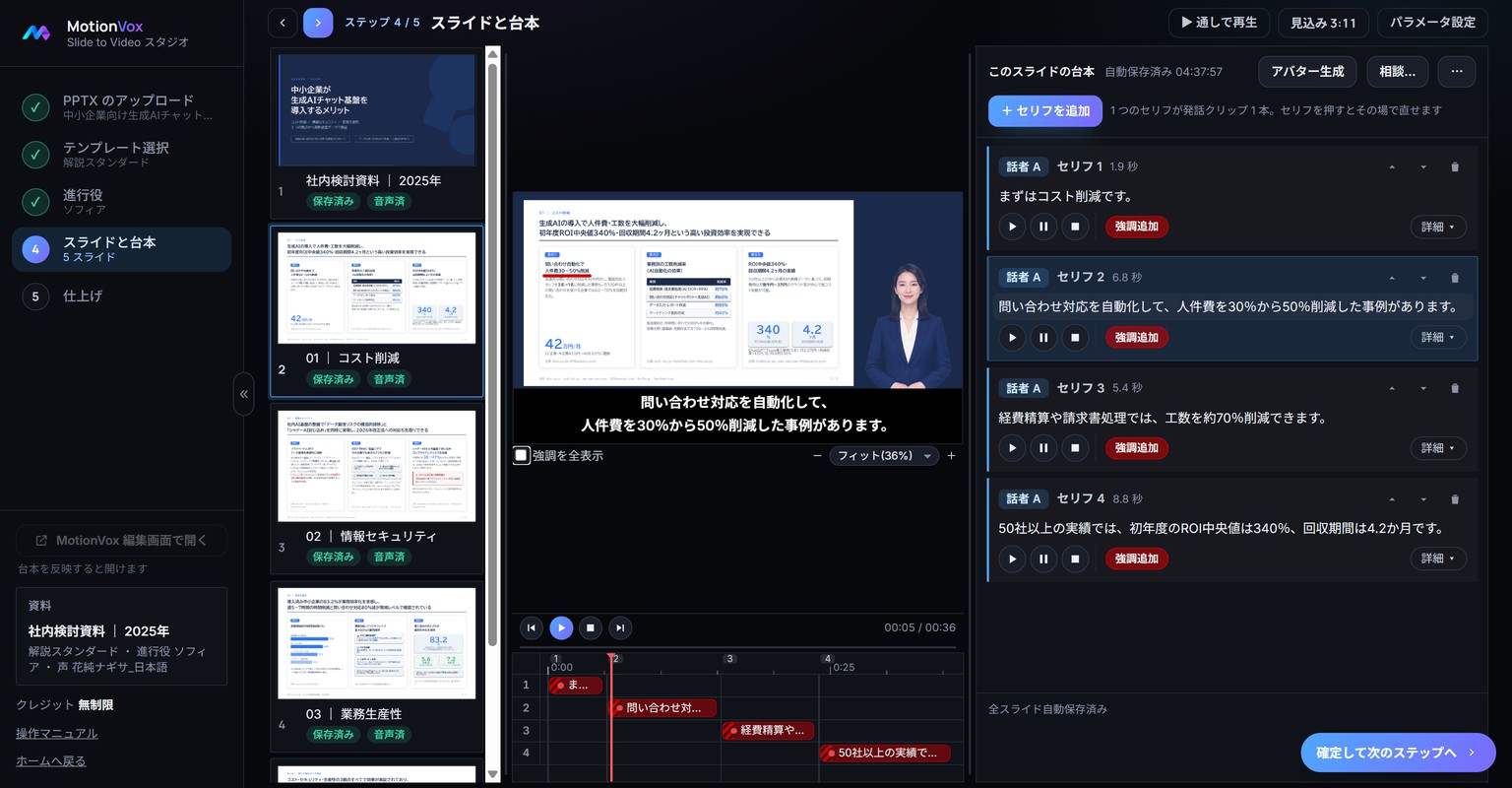
Rewrite a line
Click a line and rewrite it in place. Only that line’s narration is recreated.
-
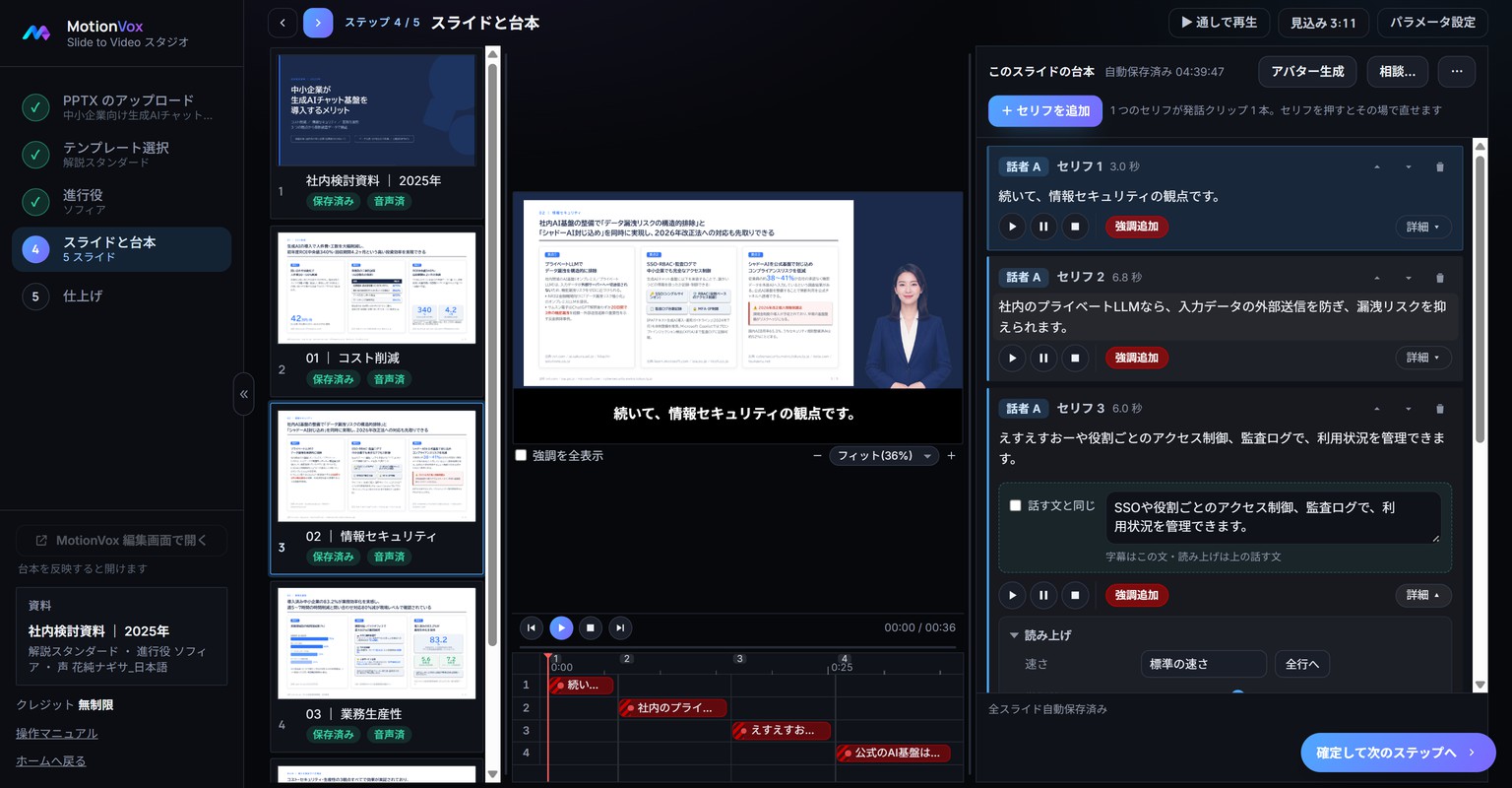
Use a different caption text
Keep the spoken text and change only the caption shown on screen.
-
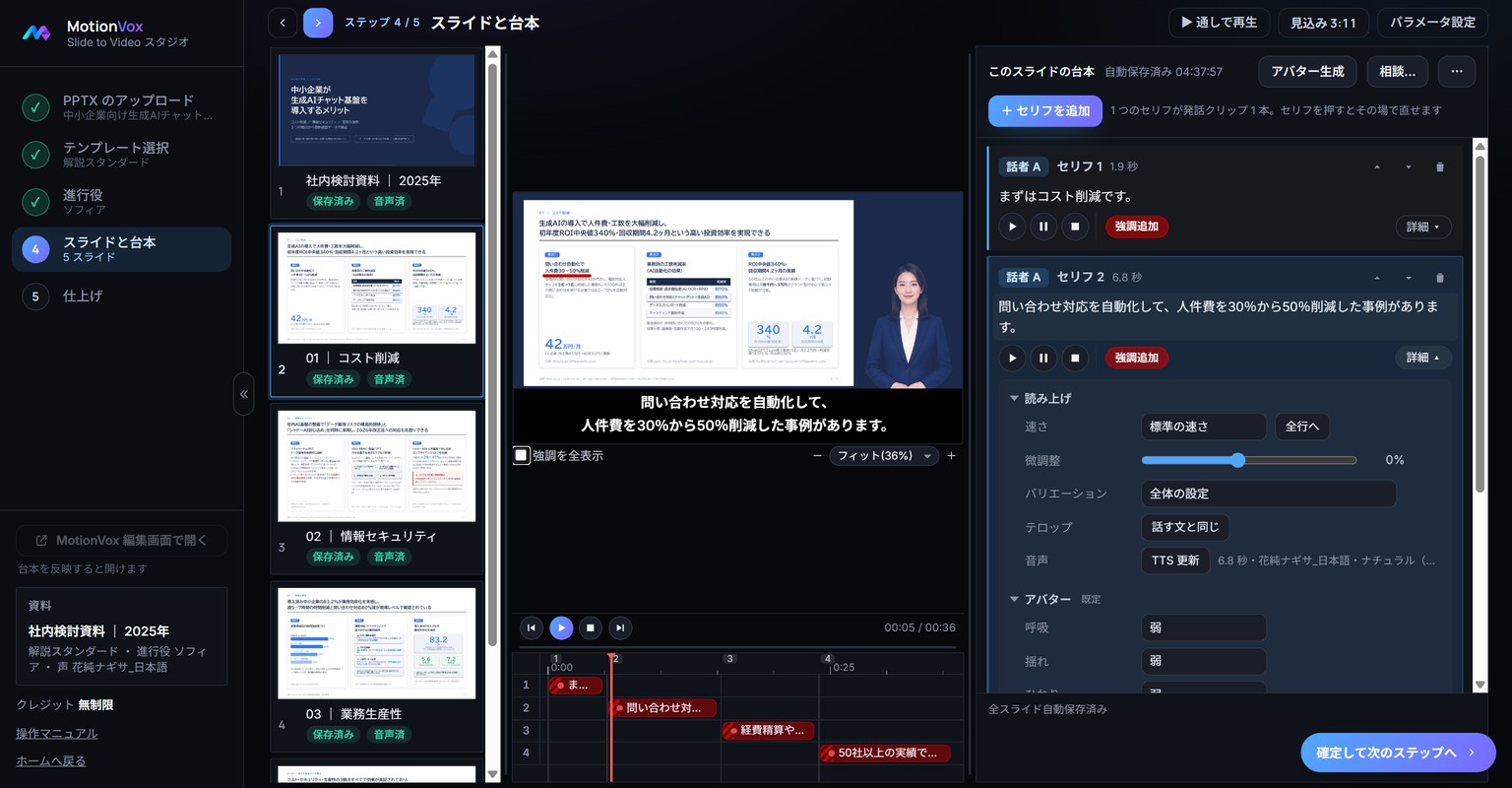
Set speed and body motion line by line
Open Details on a line to check and adjust narration speed and the presenter’s body motion.
-
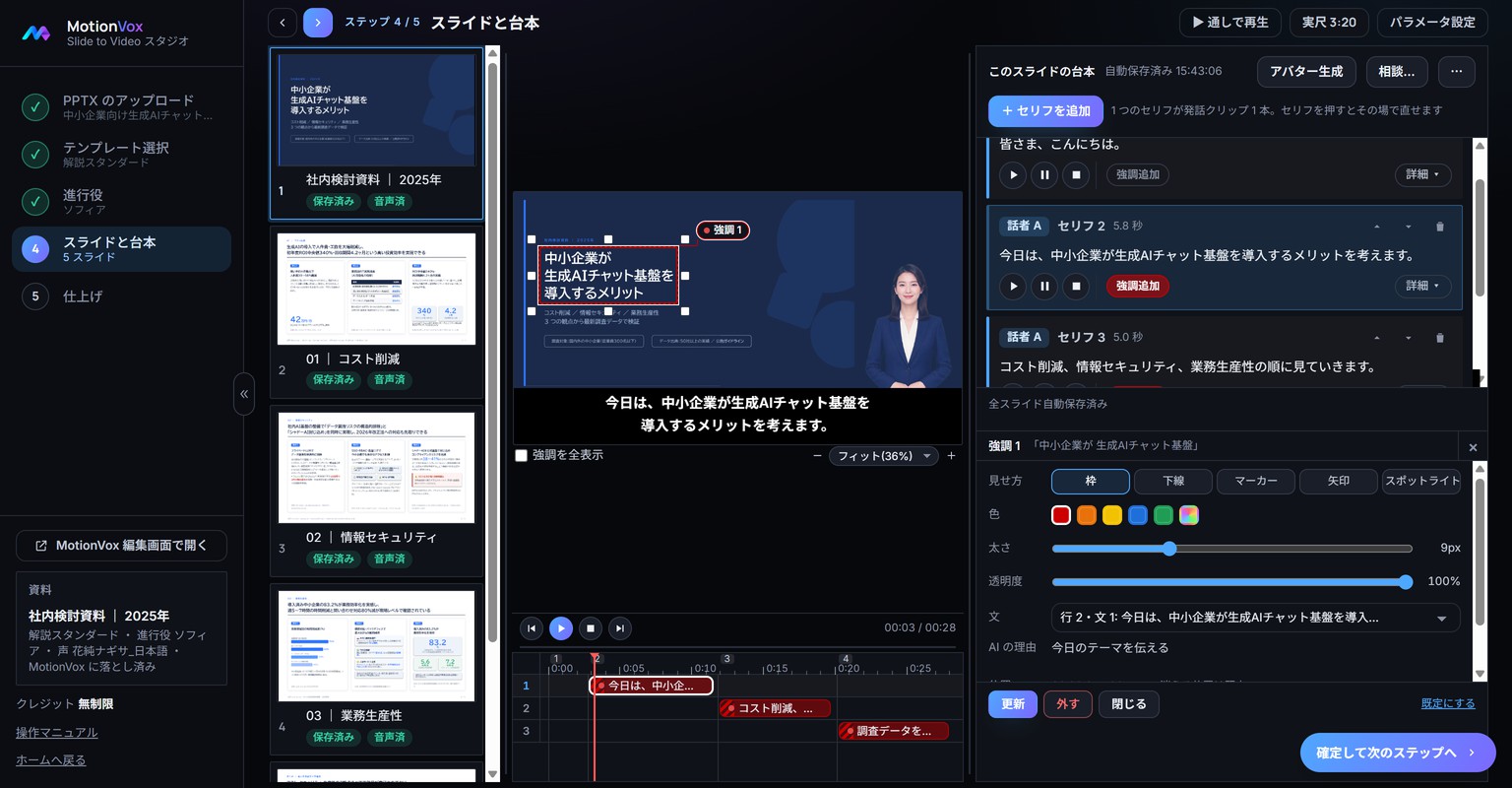
Emphasize key parts of a slide
Highlight part of a slide in time with a line. See where emphasis is placed and how to choose its look, color and thickness.
-
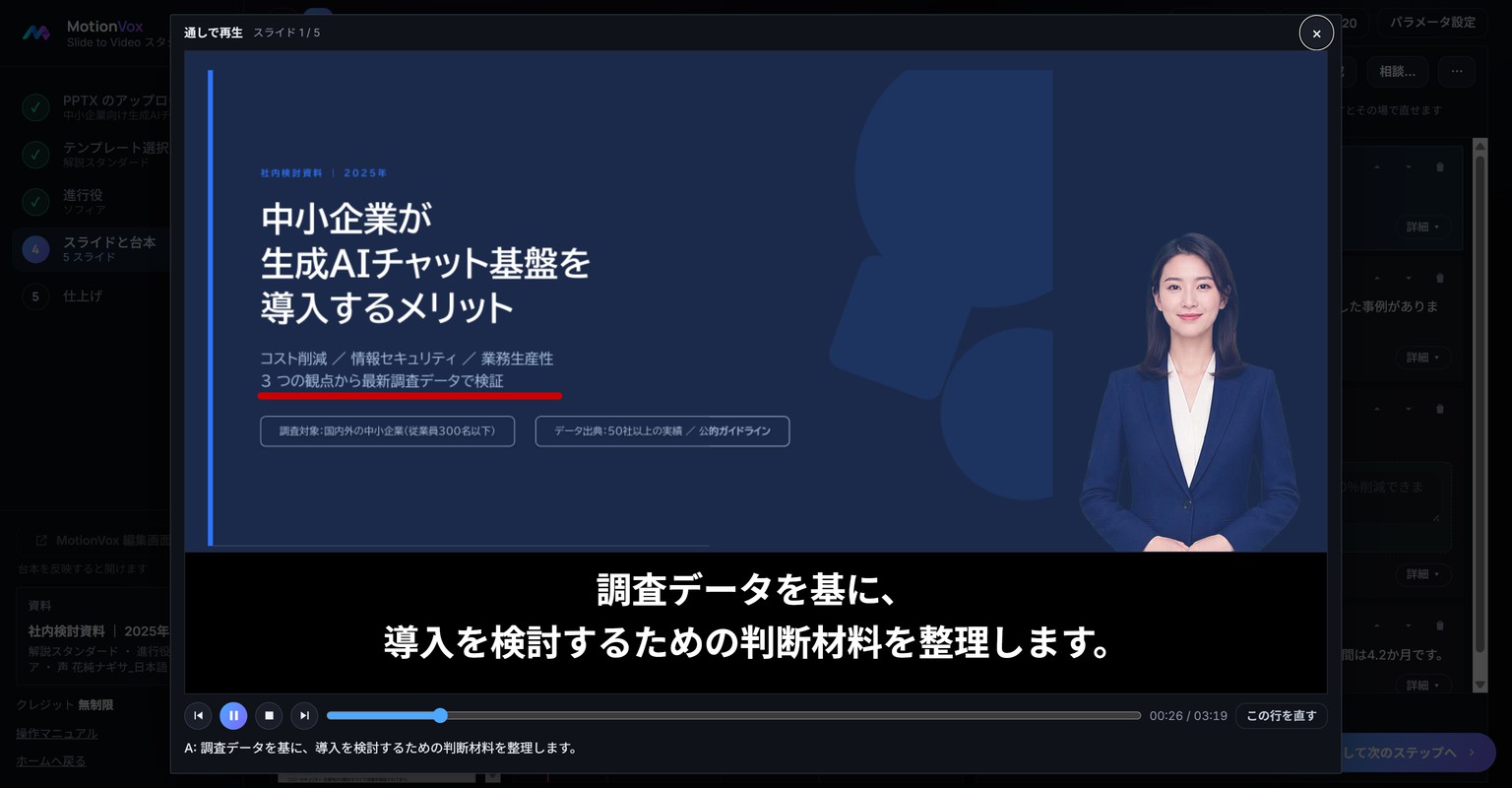
Check everything with Play through
Before creating the video, play every slide in sequence to check the flow.
-
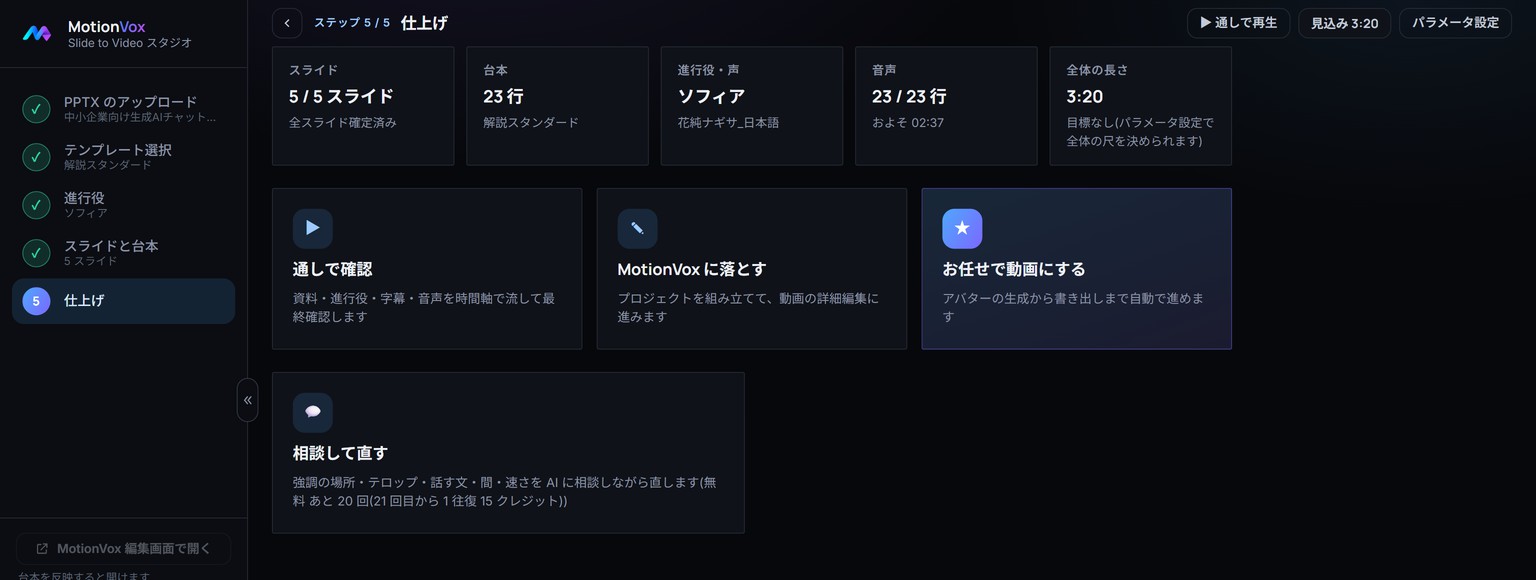
Create the video in Finish
In the last step, choose how to create the video: let MotionVox finish it, or hand off to the track editor.
-
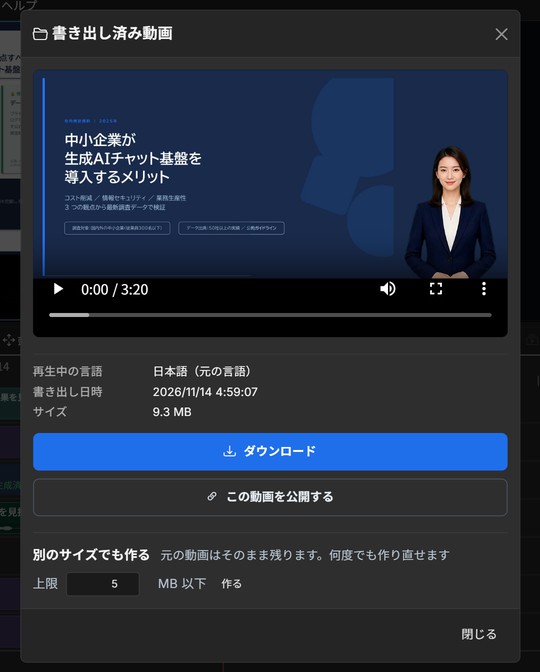
Finish in the track editor and save the MP4
Check how the video ends in the track editor, fix and re-export if needed, then download the MP4.
No matching guides
Try a shorter term such as captions, voice or save. Clearing section and topic filters may help.