
MOTIONVOX GUIDE
Basic operations
Choose the editing task you want to try, such as adding captions or changing a background.
Choose a guide
-
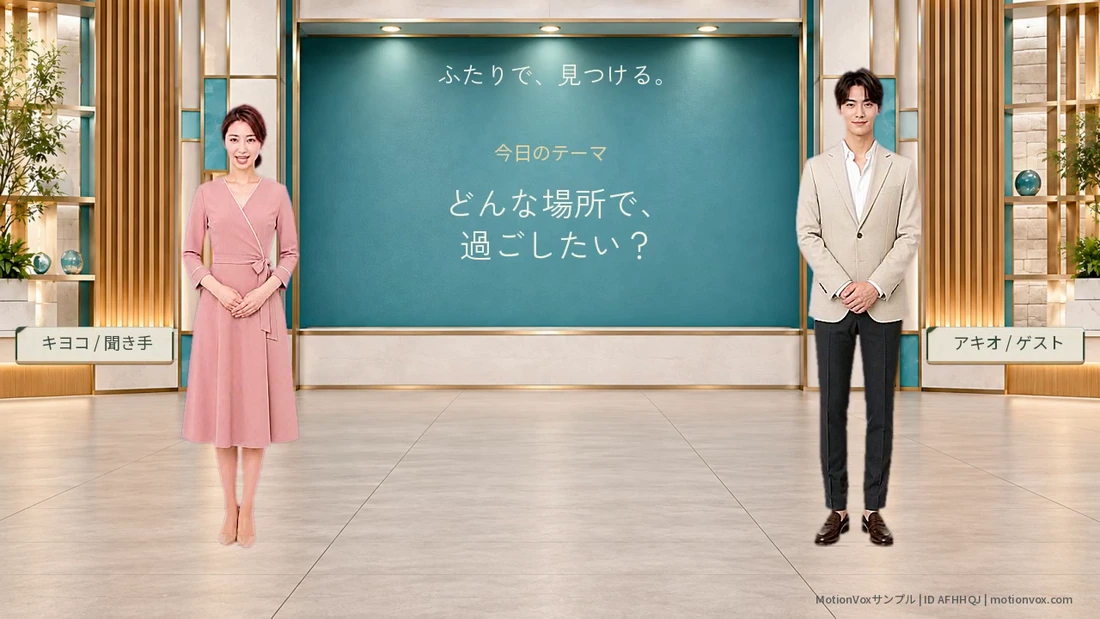
Choose a presenter and body view
Choose an avatar and arrange it in your video, checking the available upper-body and full-body views.
-
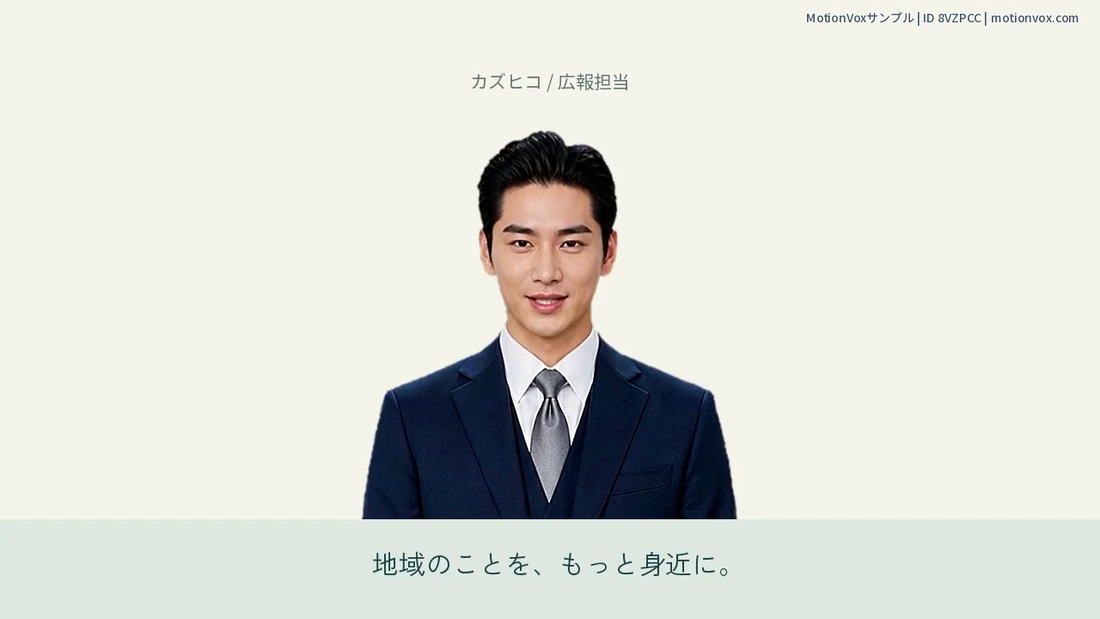
Enter dialogue, choose a voice and generate
Enter what you want the avatar to say, choose a voice and preview it speaking.
-
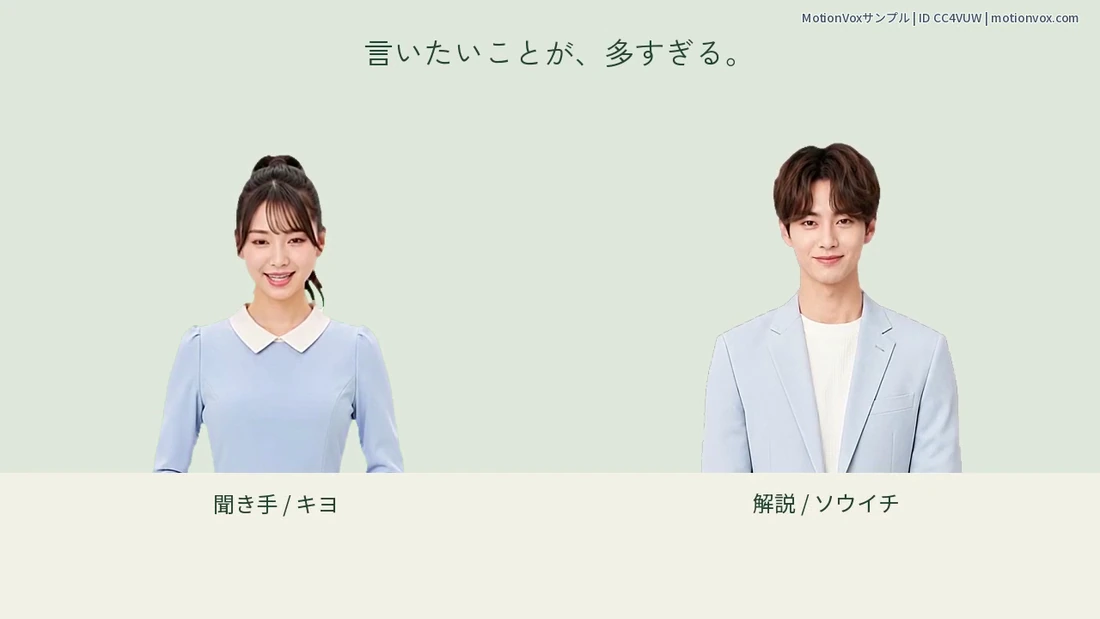
Create a two-presenter conversation
Place two avatars in the scene and make them take turns in a conversation.
-
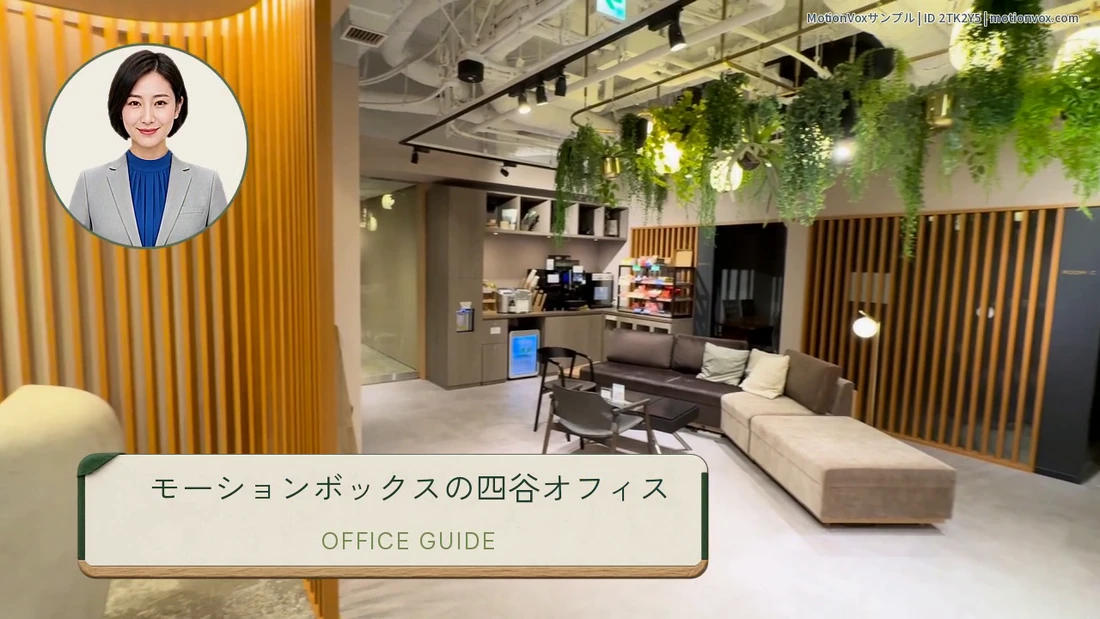
Add images, video and backgrounds
Add a background or photo, then adjust its size and position so the presenter and text remain clear.
-
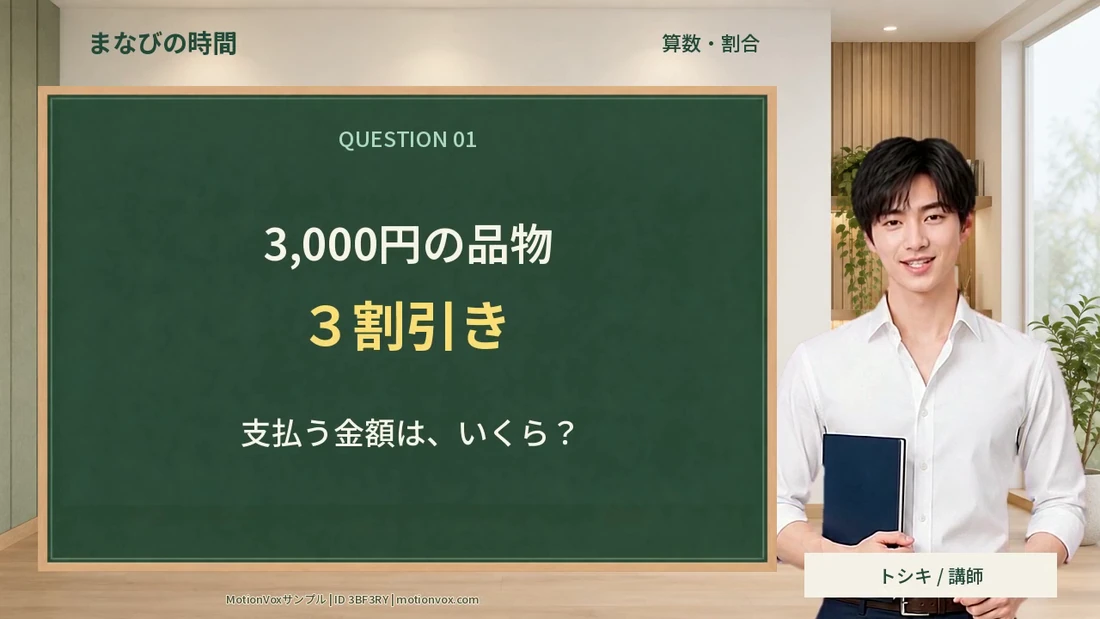
Place headings and on-screen text
Add headings and explanatory text to make your message easy to see.
-
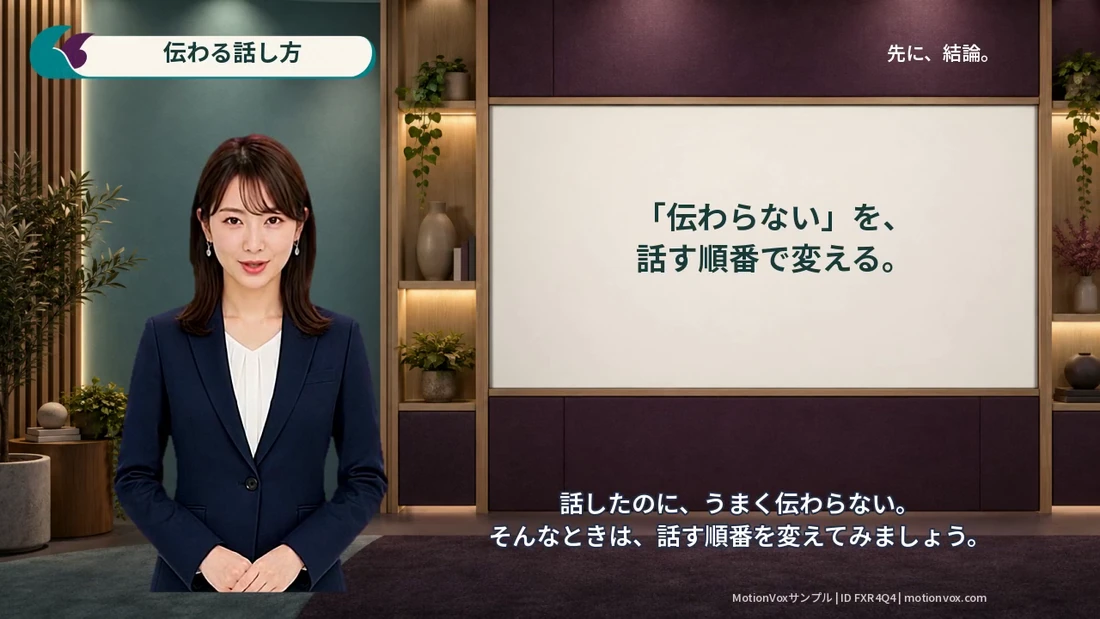
Create captions and control linking, fixed text and style
Show the spoken words as captions, then adjust their position and appearance for easy reading.
-
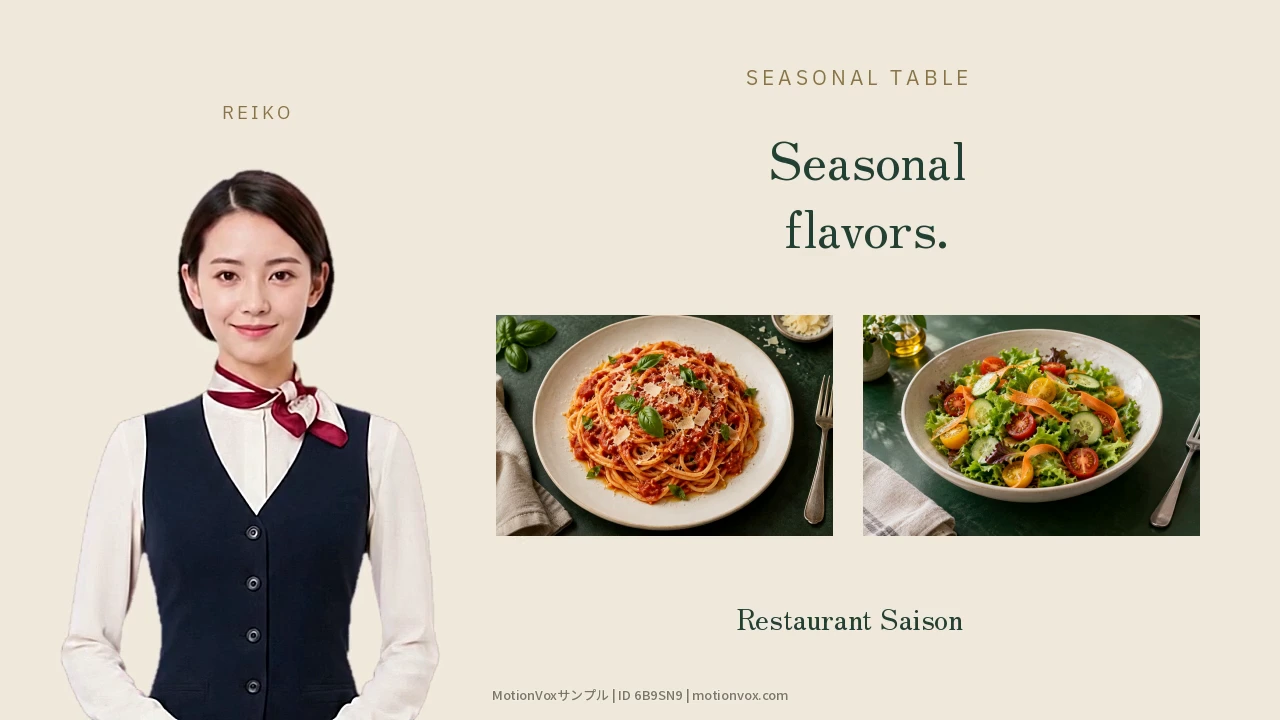
Create multilingual translations
Translate your video and prepare a version with speech and captions in another language.
-
Manage translations, voices and language versions
Add translation languages and learn how to choose their voices and update them after changing the original.
-
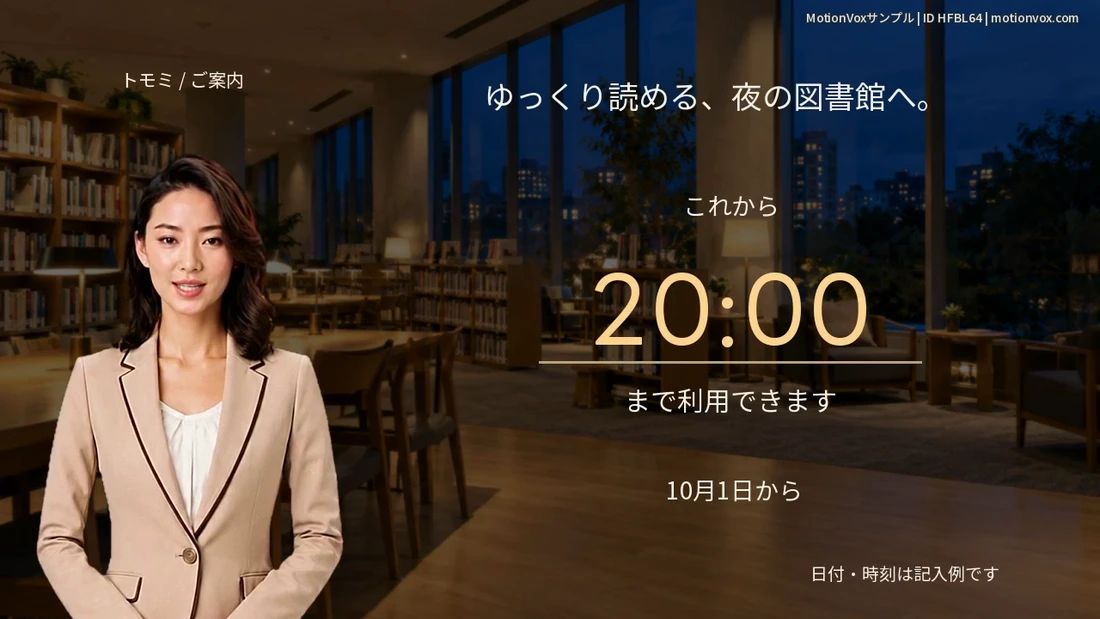
Use easy Japanese and ruby captions
Make Japanese easier to read with simpler wording and pronunciation guides on captions.
-
Animation: entrance, movement and exit
Try making text and images appear gently or move across the screen.
-
Effects: cropping, borders, color and text
Adjust how materials look with circular crops, borders, colors and other effects.
-
Expression, gaze and head motion: families, baselines and clips
Match the avatar’s expression, gaze and head movements to what it is saying.
-
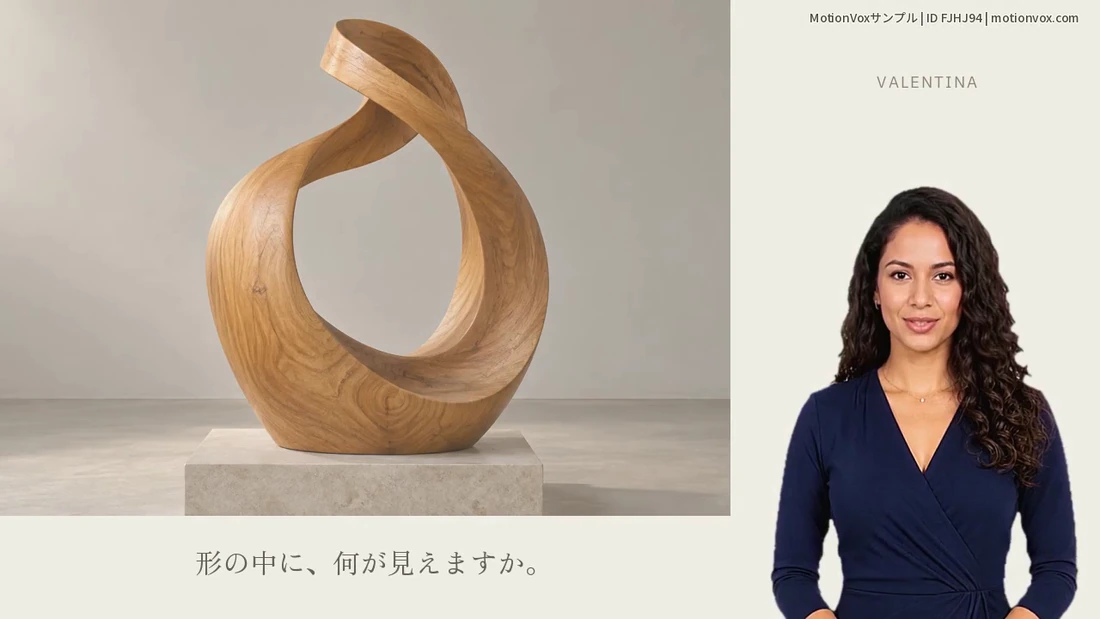
Add music and sound effects; balance them with speech
Add background music or sound effects and balance them so the avatar stays easy to hear.
-
Group tracks and adjust them together
Group related items, such as a presenter and name label, so you can adjust them together.
-

Arrange content in a portrait frame
Arrange the presenter, text and captions clearly within a portrait frame.
-
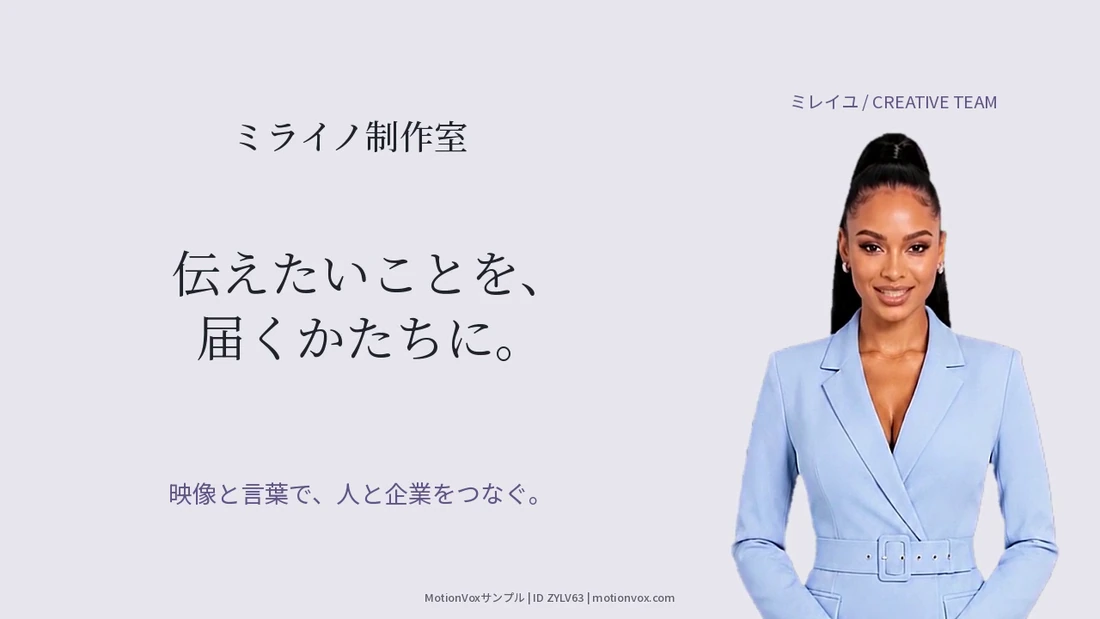
Save projects, create copies and distinguish MP4 export
Learn how to save your work and make another version while keeping the original.
-
Update an existing video
Keep the original project while revising dialogue and text to update your video.
-
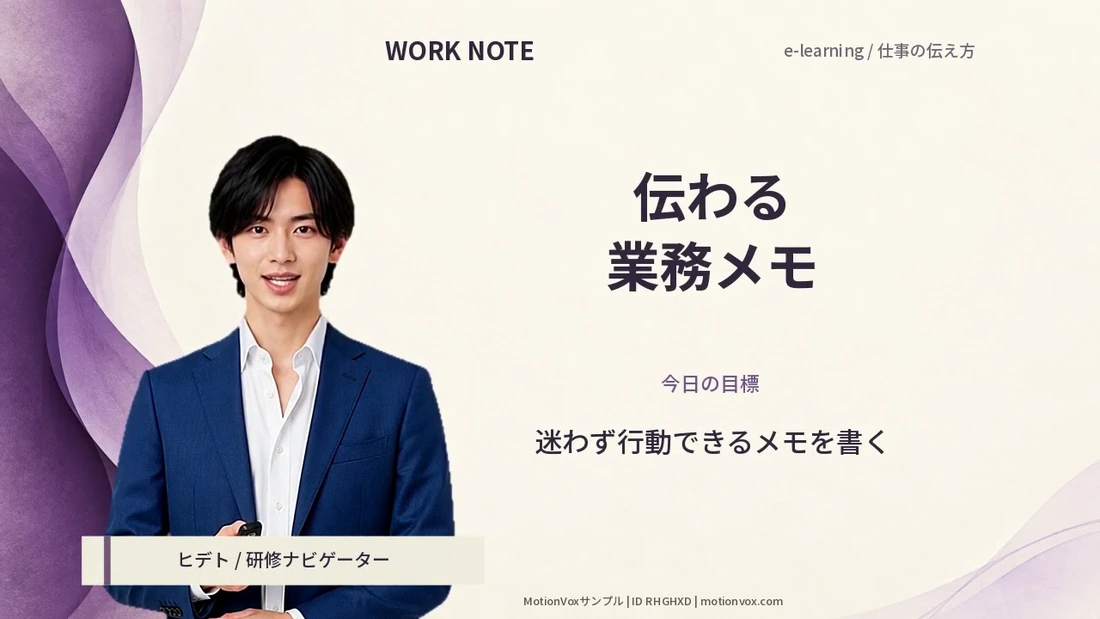
Export an MP4 and review it
Turn your edited project into an MP4 that you can play and download.
No matching guides
Try a shorter term such as captions, voice or save. Clearing topic and guide-type filters may help.
Ask us for help →NEED A HAND?
Need help moving forward?
Tell us what message you see and which step you are on. Please do not send passwords or other secrets.